Format book text

You can add text to a photo book, then change the appearance of the text by choosing different font options. You can also copy and paste a text style to other text in your book.

Add or format text on a book page

  1. Click Projects in the toolbar, then double-click a book.

  2. Double-click the page where you want to add or format text.

  3. If the page doesn’t already contain text, click the Options button Options button in the toolbar, then select a page layout that includes text.

  4. Enter or edit text.

  5. Do one of the following:

    • Format the text using the tools in the Text Options window.
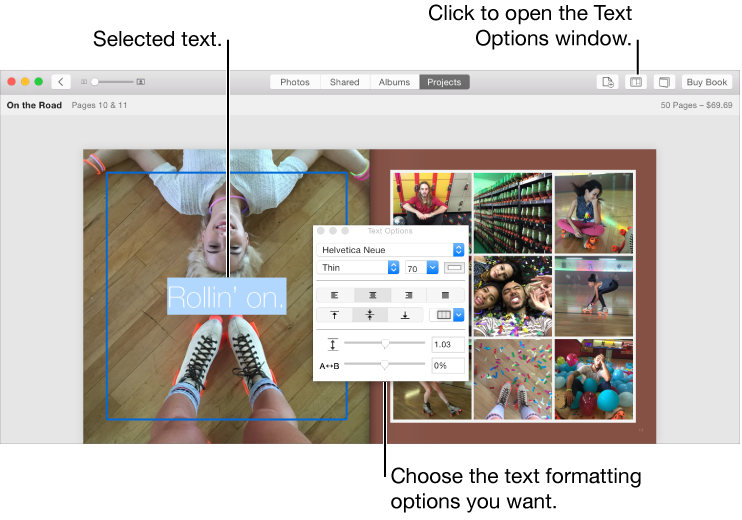
      Text Options window
    • Choose Edit > Font, then choose the text formatting commands you want.

Apply text formatting to similar text in a book

You can copy text formatting and then apply it to similar text in another part of the book. For example, if you like the look of text in one title box, you can copy its formatting to all other title text in the book.

  1. Click Projects in the toolbar, then double-click a book.

  2. Double-click a page, then double-click the text with the formatting you want to copy.

  3. Choose Edit > Font > Copy Style.

  4. Select the text you want to change, then choose Edit > Font > Paste Style.

The text formatting is applied to the selected text field.

Navigate through all of the text fields in a book

  1. Click Projects in the toolbar, then double-click a book.

  2. Double-click a page with text, then click a text field to select it.

  3. To select the next text field in the book, press the Tab key.

    To advance to the next text field, press the Tab key again.

Show or hide page numbers in a book

If the book theme you’re using includes page numbers, you can choose whether or not to include them in the book.

  1. Click Projects in the toolbar, then double-click a book.

  2. Click the Book Settings button Book Settings button in the toolbar, then select or deselect the “Show page numbers” checkbox.
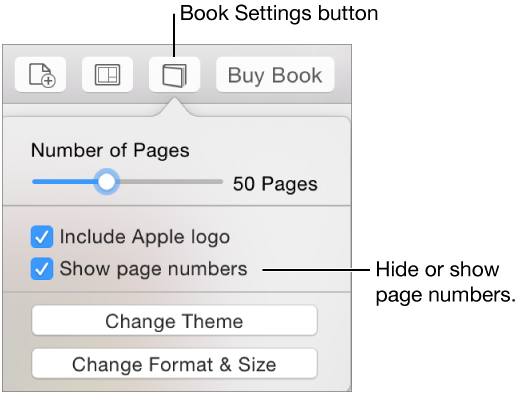
    If you’re using a theme that has no page numbers, this checkbox isn’t available.

    Settings dialog with “Show page numbers”

If you see an alert (red triangle) while working on a book

If you see a red triangle with an exclamation point while working on a book, there’s text that doesn’t fit in the available space, either because the font is too large or the text uses too many characters.

Triangle alert icon

To fix an alert, do one of the following: