Find photos by keyword

Keywords are tags or labels you add to your photos to help you easily find the photos. Photos offers a selection of keywords, and you can add your own keywords. You can assign keywords to photos in the Info window or the Keywords Manager, and you can assign keyboard shortcuts to your keywords so you can apply them more quickly.

Search for photos by keyword

You can search for photos by keyword throughout your entire Photos library, or select a specific album, slideshow, or project and search within it.

  1. Click the search field in the toolbar.

  2. Type a keyword in the search field.

    As you type, photos that have the text you entered appear in the window. You can type multiple words separated by a space to search based on multiple criteria. For example, entering “farm fields” locates all photos that have both the keyword “farm” and the keyword “fields” associated with them.

    To display all your photos again after you’ve finished a search, click Cancel.

Add or remove keywords in the Info window

  1. Select the photos to which you want to add keywords.

  2. Choose Window > Info to open the Info window, or press Command-I.

  3. In the Info window, click the Add a Keyword field, then type a keyword and press Return to add it to the photo.

    As you type, Photos suggests keywords that you’ve used before. To delete a keyword, select the keyword and press Delete.

  4. When you’re done, close the Info window.

Add or remove keywords in the Keywords Manager

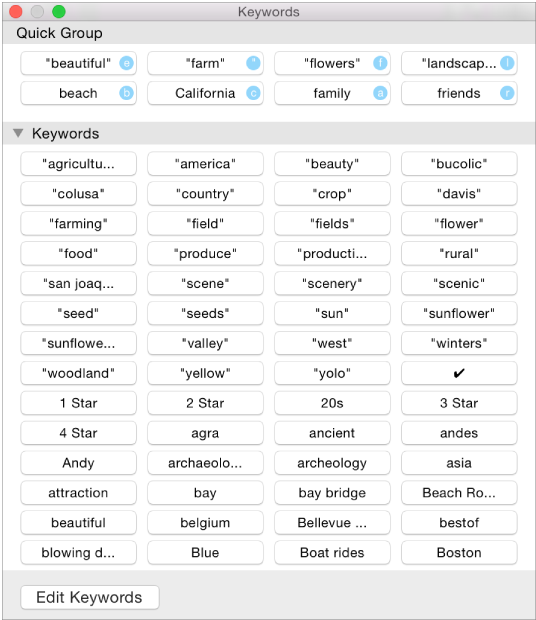
You can use the Keywords Manager to assign keywords to selected photos, manage your list of available keywords, and create a “quick-pick” list of your most common keywords so you can assign them more quickly.

  1. Select one or more photos.

  2. Choose Window > Keyword Manager.

    Keyword Manager window
  3. To assign keywords to the selected photos, click the keywords. To remove a keyword from the photos, click it again.

  4. To edit the keywords list, do any of the following:

    • Add a keyword to the keywords list: Click Edit Keywords, click the Add button (+), then type the new keyword.

    • Edit a keyword: Click Edit Keywords, click the keyword you want to change, click Rename, then type your changes.

    • Delete a keyword from all your photos: Click Edit Keywords, select the keyword you want to delete, then click the Delete button (–).

    • Add or change a keyboard shortcut for a keyword: Click Edit Keywords, select a keyword, click Shortcut, then type a keyboard shortcut.

    • Create a quick-pick list of keywords: Drag keywords into the Quick Group area of the Keywords Manager.

      Photos gives each keyword in your quick-pick list a keyboard shortcut, so you can quickly assign the keyword to a photo.