You can publish your photos and video clips directly from Photos to your Facebook, Flickr, or Twitter account.
Choose Apple menu > System Preferences, then click Internet Accounts.
Click Facebook, Flickr, or Twitter.
Type your user name and password, then click Next.
Select the photos or video clips you want to post.
Click the Share button
in the toolbar and choose Facebook.
If Photos asks you to log in to your Facebook account, type your user name and password, then click Sign In.
In the Facebook dialog, choose options for the photos, and if you want, add a comment.
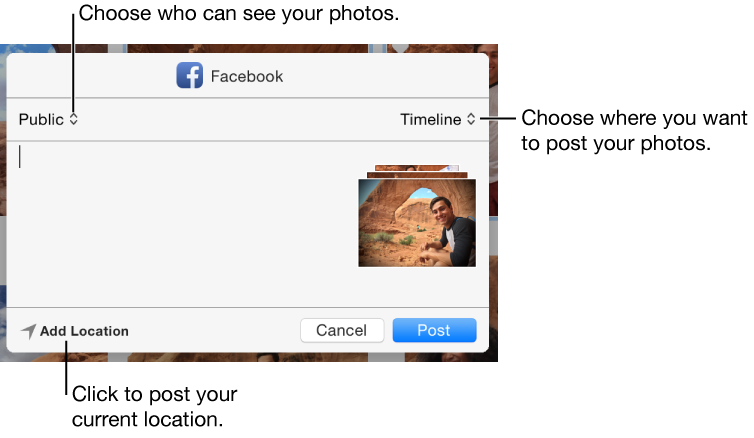
Choose who can view the photos: Click the pop-up menu at the top left and choose an option.
Choose where to post the photos: Click the Timeline pop-up menu and choose your timeline or an album.
Add the location of your computer to the photos: Click Add Location.
Add a comment: If you want, type a comment to accompany the photos.
Click Post.
You can share your photos online by publishing them directly from Photos to Flickr.
Select the photos you want to publish.
Click the Share button
in the toolbar and choose Flickr.
If Photos asks you to sign in to your Flickr account, type your account ID and password, then click Sign In.
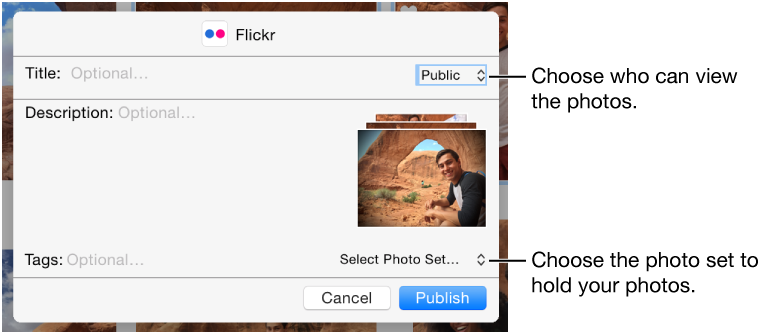
In the Flickr dialog, choose options for the photos.

Choose where to add the photos: Click the Select Photo Set pop-up menu and choose a photo set (what Flickr calls an album). To add your photos to your Flickr Photostream, choose Photostream.
Choose who can see the photos: Click the pop-up menu at the top right.
Add a title, description, and tags: Type text in the fields.
Click Publish.
You can share one photo at a time on Twitter directly from Photos.
Select a photo to share.
Click the Share button
in the toolbar and choose Twitter.
If Photos asks you to log in to your Twitter account, type your account email address and password, then click Sign In.
In the Twitter dialog, type a message up to 119 characters long, and click Post.
Note: The photo accounts for 21 characters of the image URL.
A message appears to let you know that your photo was published.
A link to your shared photo appears in your Twitter feed.