Click Projects in the toolbar, then double-click the book.
Do one of the following:
Add a page: Select the page you want the new page to follow, then click
 in the toolbar and choose Add Page.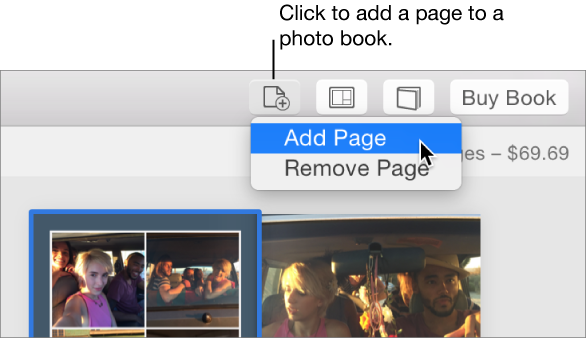
Set the exact number of pages in a book: Click the Book Settings button
 in the toolbar and drag the Number of Pages slider.
Delete a page from a book: Click the page to select it and press Delete, or click
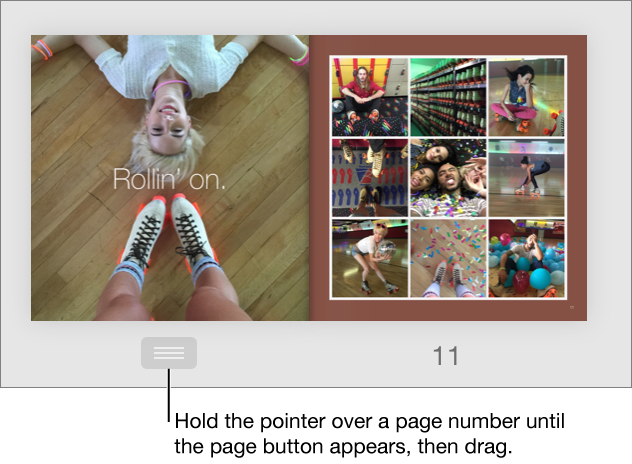
in the toolbar, choose Remove Page, then click Continue. You can also Control-click the page, choose Remove Page, then click Continue.Move a page in a book: Position the pointer over a page number until the page button appears, then drag the page button to move the page to a new location. You can also select a page and then drag the page button.