Play a video clip
Double-click the video clip to open it.
Click the Play button
 .
.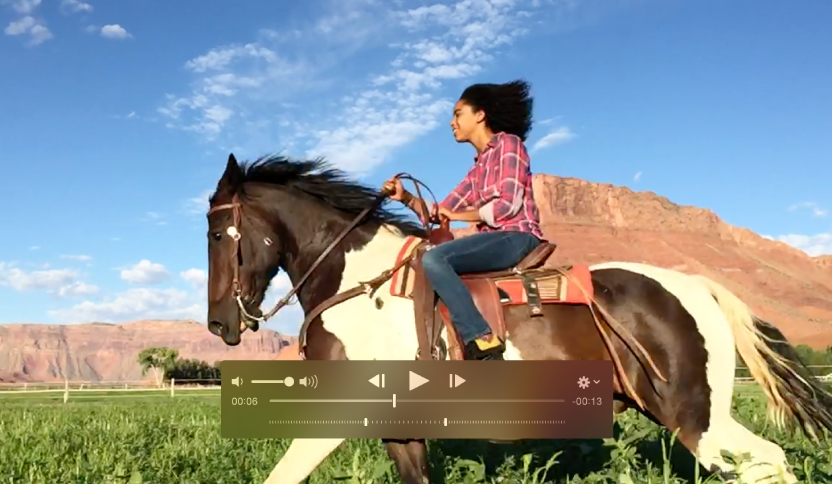
When you hold the pointer over a video, the video controls appear. Use the controls to play and pause your video clip, fine-tune the sound, and more.

You can view video clips you’ve imported into your Photos library, and even trim the length of a clip, if you want. You can also display slow-motion and time-lapse video clips imported from an iPhone.
Double-click the video clip to open it.
Click the Play button .
When you hold the pointer over a video, the video controls appear. Use the controls to play and pause your video clip, fine-tune the sound, and more.
You can trim a video clip so only a certain part of it plays. For example, you can make a clip stop playing at the point where you want it to end, instead of playing the entire clip. Trimming a video clip doesn’t actually delete footage; you can recover any trimmed footage later.
Double-click the video clip to open it.
Position the pointer over the clip to display the player controls, then click the Action pop-up menu  and choose Trim.
Drag the yellow trim handle at either end to shorten the clip, then click Trim.
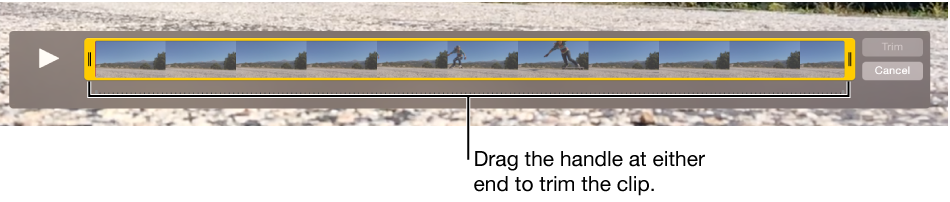
To cancel the trim, click the Action pop-up menu and choose Reset Trim.
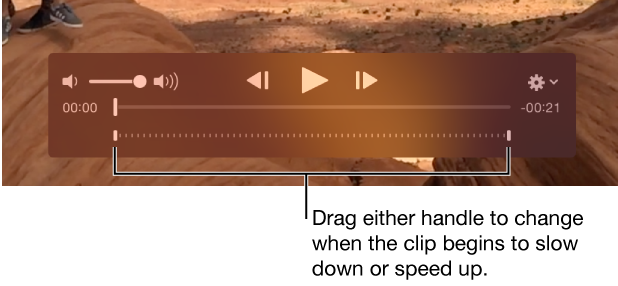
You can change how a slow-motion video slows down and speeds up again.
Click Albums in the toolbar, then click the Videos album.
Double-click a video clip to open it.
Drag the slow-motion controls to change when the clip begins to slow down and speed up again.