You can create albums to better organize your photo library.
Click
in the toolbar and choose Album, then choose New Album from the Album pop-up menu.
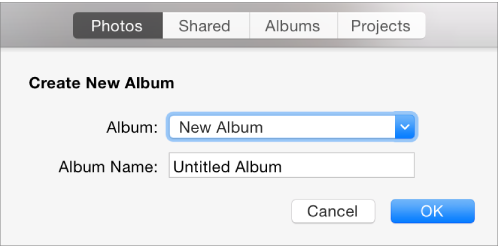
Type a name for your new album and click OK.
Tip: If you already know what photos you want to add to the album, you can select them before you create the album, and they’ll be included in your new album.
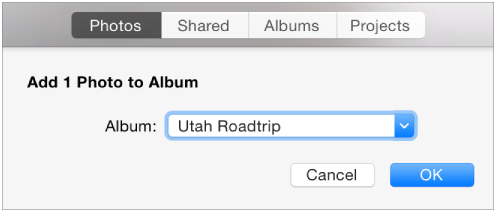
Select the photos you want to add to an album.
Click
in the toolbar and choose Album.
Click the Album pop-up menu and choose the album that you want.

Click OK.
Click Albums in the toolbar, then drag a folder of photos from the Finder to an album in Albums view. Photos adds the contents of the folder to the album.
Double-click the album to open it, then do any of the following:
Order photos by date: Choose View > Keep Sorted By Date.
Rearrange photos manually: Drag the photos into the order you want.
Remove photos from an album: Select the photos, then press Delete, or choose Image > Remove [number] Photos from Album.
The photos are removed only from this album, not from other albums in your photo library. If you accidentally remove a photo from an album, choose Edit > Undo to restore it.
You can choose an album’s key photo—the photo that represents the album in the Photos window.
Double-click an album to open it, then select the photo you want as the key photo.
Choose Image > Make Key Photo.