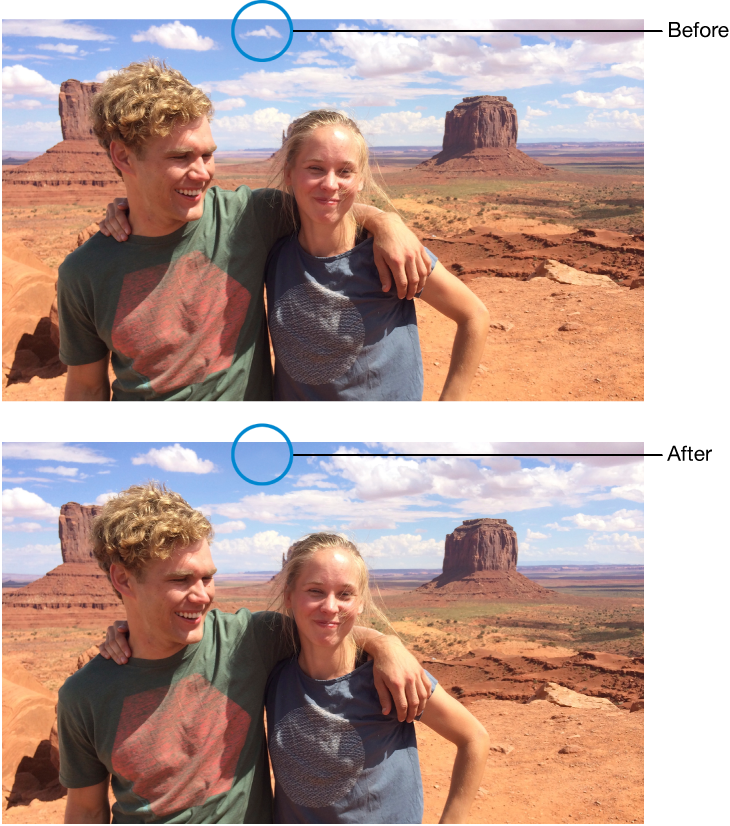

You can remove blemishes, dust specks, and other small marks from a photo.
Double-click a photo, then click Edit in the toolbar.
Click the Retouch button  .
.
Tip: To quickly see the retouch tool while editing, press R. Press R again when done making changes.
Drag the Size slider to select a brush size.
You can also change the brush size by pressing the Left Bracket ( [ ) and Right Bracket ( ] ) keys.
Position the brush over the mark, then click or drag across the mark to remove it.
If the mark is small and isn’t removed on the first try, try clicking it again. If that doesn’t remove the mark, drag in short strokes to blend it into its surrounding colors.
Tip: If you’re not getting the results you want, you can copy pixels from another part of the photo and apply them to the blemish. Press the Option key while you click an area that has the texture you want, then use the retouch tool to apply the change.