General preferences
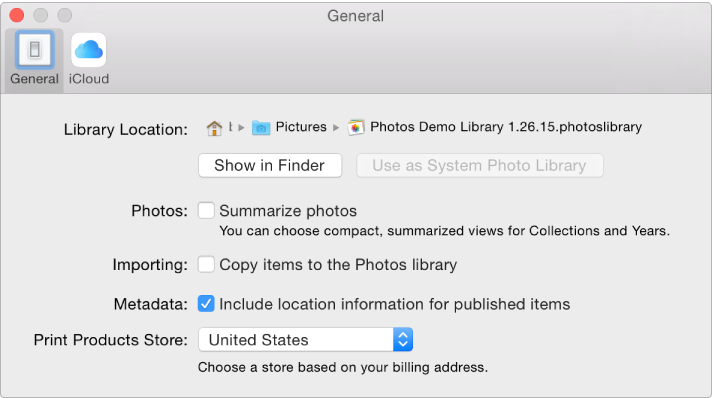
In the General pane, you can set basic Photos preferences. For example, you can set whether photos are shown in a “summarized” view, select whether imported items are copied into your library, select whether GPS information is included with photos, and more.
Preference | Explanation |
|---|---|
Library Location | To view the location of your Photos library in the Finder, click Show in Finder. To use the currently open library as your System Photo Library (which allows you to use it with iCloud Photo Library), click Use as System Photo Library. For information about how to switch libraries, see System Photo Library overview and Use multiple libraries in Photos. |
Photos | To display your photos in a summarized view that shows only a selection of thumbnails for each year or collection, click the “Summarize photos” checkbox. To show thumbnails of all photos in a collection or year, deselect this checkbox. |
Importing | By default, Photos is set to store all imported photo and video files in the Photos library. To leave imported items in their current location outside of the library, deselect the “Copy items to the Photos library” checkbox. If photos are stored outside the library, they will not be automatically uploaded to iCloud Photo Library and available on all your devices. You must manually back them up to safe storage locations. |
Metadata | To have Photos use location information embedded in photos taken by a GPS-enabled camera (including iPhone), select the “Include location information for published items” checkbox. |
Print Products Store | To ensure that print products you buy are priced and sent to the proper location, choose a country from the pop-up menu. For routine purchases, choose the country where your home is located. If you are in a different location away from home, choose the country where your print product will be printed and delivered from. (Note that when ordering in some countries, you may not be able to use a credit card with a billing address located outside that country. To see a list of countries that support out-of-country billing, see Ordering overview.) |