
Double-click a photo, then click Edit in the toolbar.
Click the Adjust button
 .
.
Click the Add button at the top-right corner of the pane, then choose each tool you want to appear in the Adjustments pane, so a checkmark appears next to it.
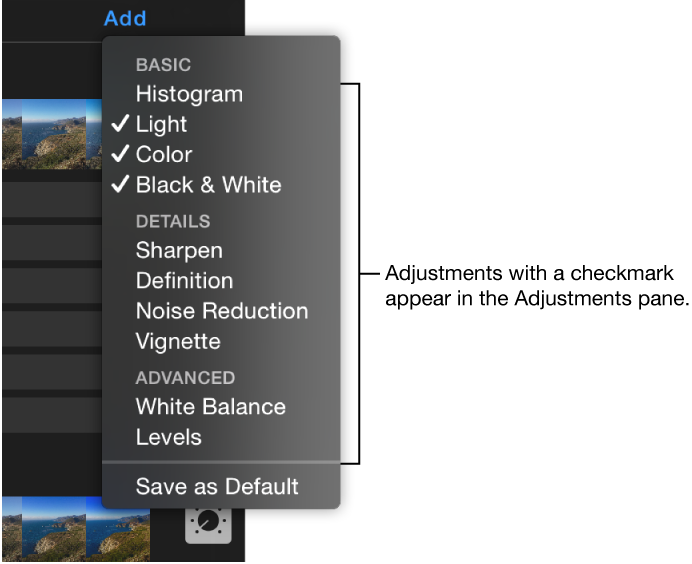
To make the adjustments you added your default set, click the Add button and choose Save as Default.
Your selection of adjustments now appears each time you adjust a photo.
To remove an adjustment, click the Add button and choose the adjustment to remove the checkmark, or click the triangle next to the adjustment in the Adjustments pane and choose Remove Adjustment.