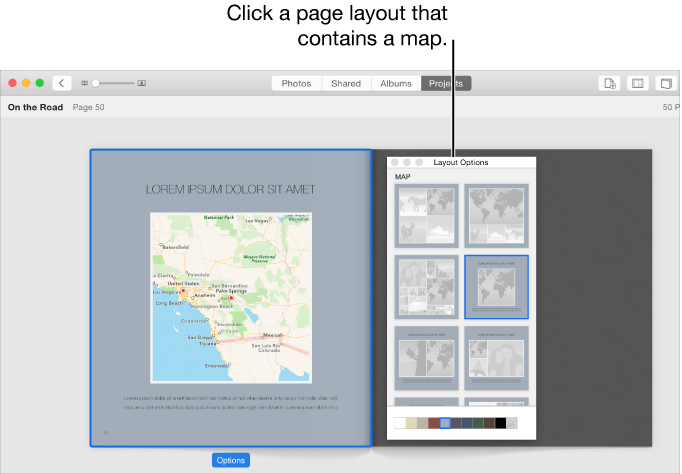
You can add maps to your photo books to show where the photos in the book were taken. You can add your own locations to a map, and change how the map appears.
Add or remove a map
Click Projects in the toolbar, then double-click a book.
Double-click the page you want to add the map to.
Click the Options button in the toolbar.
Do one of the following:
Add a map: Select a page layout that contains a map.
Remove a map: Select another page layout.
Edit and reposition a map
Click Projects in the toolbar, then double-click a book.
Double-click the page that contains the map, then select the map.
Important: Be sure to select the map, not the page.
Click the Options button in the toolbar.
Do any of the following:
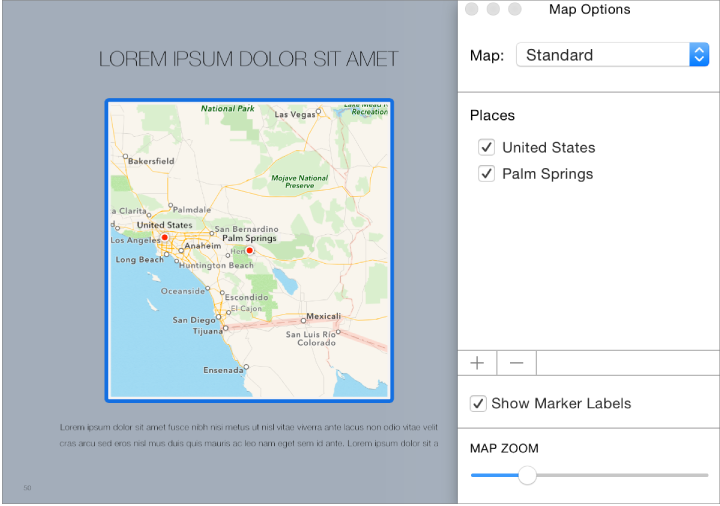
Change the style of the map: Click the Map pop-up menu and choose Standard, Hybrid, or Satellite.
Show or hide text labels for the locations of photos on the map: Select or deselect the Show Marker Labels checkbox.
Zoom in or out on the map: Drag the Map Zoom slider.
Reposition the map in its frame: Drag the map up, down, left, or right.
Add, remove, and rename place markers on a map
After you add a map to a book page, the locations associated with your photos are automatically displayed on the map. You can add new locations, and add place markers to the map.
Click Projects in the toolbar, then double-click a book.
Double-click the page that contains the map, then select the map.
Important: Be sure to select the map, not the page.
Click the Options button in the toolbar.
Do any of the following:
Add a new place marker: Click the Add button (+). A place marker appears. Position the pointer over the place marker, click and hold until the red circle enlarges, then drag it to the desired location. Double-click the place marker name and type a location name or description.
Manually add a location to a map: Control-click a location on the map and choose Drop Pin. A marker appears on the map, and the location appears in the Places list. Double-click the name of the new location and type a name or description.
Remove a place marker: Click to select a place name in the Places list (click the name, not the checkbox), then click the Remove button (-).
Show or hide a place marker: Select or deselect the checkbox next to a place name.
Rename a map location: Double-click the location name in the Places list and type a new name.

 in the toolbar.