You can enter text in many different languages, and use several different writing systems for Chinese, Japanese, and Korean, using the international keyboards available on your Mac. Pages provides some language-specific text-formatting features, including emphasis styles, list styles, and phonetic guides.
For best results, use these recommended fonts:
Simplified Chinese: PingFang SC
Traditional Chinese for Taiwan: PingFang TC
Traditional Chinese for Hong Kong and Macau: PingFang HK
Korean: Apple SD Gothic Neo
Japanese: Hiragino Sans (sans serif) or Hiragino Mincho (serif)
Important: The instructions below assume you enabled at least one Chinese, Japanese, or Korean keyboard on your Mac. To enable international keyboards, open System Preferences, click Keyboard, then click Input Sources.
You can add emphasis marks that are commonly used with Chinese, Japanese, or Korean text. For example, using a Chinese keyboard, you can apply Boten dots below or above the text, or a wavy underline. With Japanese text you can add plain dots or sesame dots.
Switch your keyboard to a Chinese, Japanese, or Korean keyboard.
Select one or more characters of Chinese, Japanese, or Korean text, then, in the Format  sidebar, click the Style button near the top.
If the text is in a text box, table, or shape, first click the Text tab at the top of the sidebar, then click the Style button.
Click an emphasis mark button.
The formatting options depend on the current keyboard.
You can apply Chinese, Japanese, and Korean list styles (specifically, the bullet style or numbering system) to a list written in any language.
Select the list items with the numbering or lettering you want to change.
In the Format sidebar, click the Text tab at the top, then click the Style button near the top.
Click the disclosure triangle next to Bullets & Lists, then choose Numbers.
Click the pop-up menu above Tiered Numbers, then choose a number or letter sequence.
The formatting options depend on which keyboards are enabled.
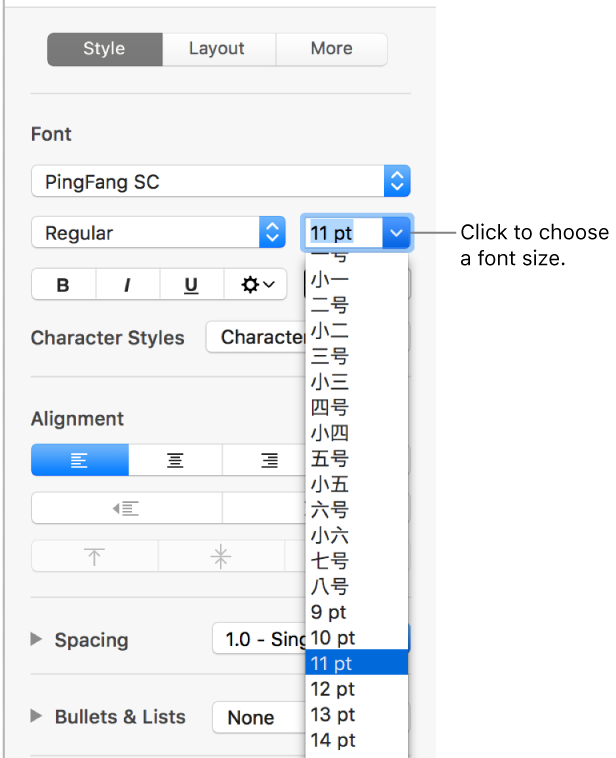
When you change the region setting on your Mac to China, the Chinese government standard font sizes appear in the font size pop-up menu in Pages, along with the standard font sizes. This allows you to easily change Chinese text in your document to prescribed sizes.
Choose Apple menu > System Preferences, click Language & Region, then click the Region pop-up menu and choose Asia > China.
If your document was open when you changed this setting, close the document and reopen it.
To change the size of Chinese text, select the text you want to change, then, in the Format sidebar, click the Style button near the top.
If the text is in a text box, table, or shape, first click the Text tab at the top of the sidebar, then click the Style button.
Click the font size pop-up menu, then choose a size.