
You can change the font and font size of text and replace a font everywhere it occurs in your document. You can change text to a color that coordinates with the template you’re using, or you can choose any color.
Select the text you want to change.
To change all of the text in a text box or a table cell, select the text box or triple-click the table cell.
In the Format  sidebar, click the Style button near the top.
If the text is in a text box, table, or shape, first click the Text tab at the top of the sidebar, then click the Style button.
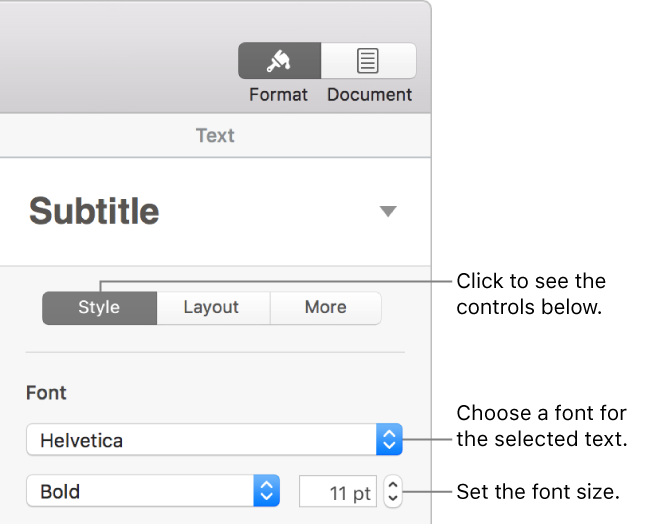
Click the Font pop-up menu, then choose a font.
Click the small arrows to the right of the font size to make the font larger or smaller.
If your document needs to use Chinese government standard font sizes, change your document’s language and formatting. Thereafter, the Chinese font sizes appear in the font size menu, regardless of the language being used.
To change a font everywhere it occurs in your document, you can replace it with another font.
Choose Format > Font > Replace Fonts (from the Format menu at the top of the screen).
Click the double arrows to the right of the font you want to replace, then choose a replacement.
If the font is listed as a missing font, also choose a typeface.
Click Replace Fonts.
The font is replaced everywhere it occurs. The replacement font uses the same size and weight as the font it replaces.
If you have the missing font and want to install it on your computer, use Font Book, available in the Applications folder of your Mac. For more information, see Font Book Help.
If you chose a replacement font for the document, then installed the missing font, your document continues to use the replacement font unless you replace it again with the font you installed.
Select the text you want to change.
To change all of the text in a text box or a table cell, select the text box or triple-click the table cell.
In the Format sidebar, click the Style button near the top.
If the text is in a text box, table, or shape, first click the Text tab at the top of the sidebar, then click the Style button.
Do one of the following:
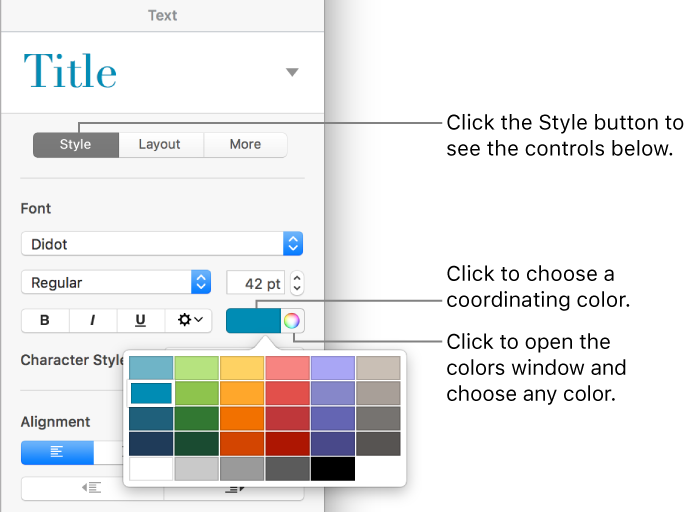
For colors that coordinate with your template: Click the color well in the Font section, then choose a color.
For any color: Click the color wheel, then choose a color from one of the color palettes.
To change the text color used by a reviewer for markup, see Set author name and comment color.
Tip: You can set a keyboard shortcut to quickly change text to a specific color.
Tip: You can add buttons to the toolbar for changing the font and making selected text bigger or smaller.