
You can add video and audio to a document, then set how it plays.
Note: Video and audio files must be in a format that QuickTime supports on your Mac. If you can’t add or play a video or audio file, try using iMovie, QuickTime Player, or Compressor to convert the file to an MPEG-4 file (with a .m4a filename extension) for audio, or a QuickTime file (with a .mov filename extension) for video.
Do one of the following:
Drag a media file from your computer to a media placeholder or to anywhere else on the page.
Click  in the toolbar, click Music or Movies, then drag a file to a media placeholder or to anywhere else on the page.
To search for media, click the magnifying glass in the upper-right corner of the media window.
Click the Play button  on the media to play it in the document.
You can record audio directly onto a page. For instance, when you create reports or books, you can record yourself reading a page so your readers can play it back.
Click in the toolbar, then choose Record Audio.
Note: After you record, you insert the recording wherever you want in the document.
To begin recording, click  ; to stop recording, click
  .
.
To rerecord from a specific point, position your pointer over the recording, swipe left or right to position the black line (or drag the scroll bar), then click .
While you record, you can continue editing your document.
To preview your recording, click Preview.
To play from a specific point, position your pointer over the recording, swipe left or right to position the black line (or drag the scroll bar), then click Preview.
To edit your recording, click Edit, then do any of the following:
Rerecord a section: Drag the blue handles to select the section. Click to record over that section.
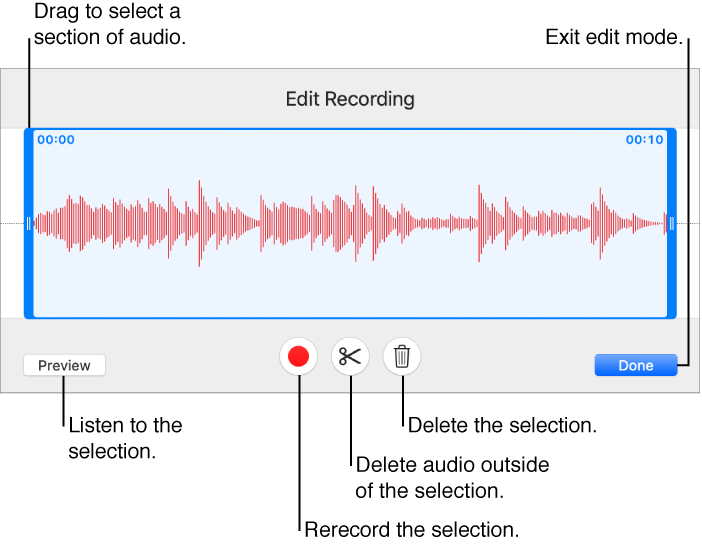
Trim: Drag the blue handles to define the section you want to keep. Click  to delete everything outside of the handles.
Delete all or part of the recording: Drag the blue handles to define the section you want to delete. Click  to delete everything inside the handles.
When you’re done editing, click Done.
On the page where you want to add the recording, click Insert or Save, then drag the recording to position it.
To play your recording on the page, click  .
.
To edit the recording after you add it to a page, select it, then click Edit Recording in the Audio tab of the Format  sidebar. To delete the recording, select it on the page, then press Delete.
You can also share your recording as an audio file. Control-click the recording, choose Share Recording, then choose a method to send it.
By default, a video or audio file plays one time when you click the Play button . You can have it repeat in a loop, and you can adjust its volume.
Select the video or audio on the page.
In the Format sidebar, click the Movie or Audio tab.
Do any of the following:
Set media to repeat: Click the Repeat pop-up menu, then choose Loop to have the media play until you click it again, or choose Loop Back and Forth to have the media play forward and then backward until you click it again.
Note: Audio that you recorded in Pages on your iOS device can’t loop back and forth.
Adjust the volume: Drag the volume slider.
Select the video or audio on the page.
In the Format sidebar, click the Movie or Audio tab.
Click Replace.
Select a video or audio file, then click Open.
Select the video or audio on the page.
In the Format sidebar, click the Movie or Audio tab.
Click the disclosure triangle next to Edit Movie or Edit Audio, then drag the Trim sliders.
Note: You can’t trim audio that you recorded in Pages on your iOS device.
You can choose the frame that’s displayed on a page to represent the video.
Select the video on the page.
In the Format sidebar, click the Movie tab.
Click the disclosure triangle next to Edit Movie, then drag the Poster Frame slider.
Select the video or audio on the page.
In the Format sidebar, click the Movie or Audio tab.
Drag the volume slider.
You can set Pages to optimize the format and quality of movies and images that you add to documents.