
You can add page numbers to your document that automatically adjust as pages are added or deleted.
Move the pointer over the top or bottom of the page until you see the three header or footer fields, then click one (you can use any combination of fields to complete your header or footer).
Note: If you don’t see the fields, turn on headers and footers for the document (click  in the toolbar, click the Document tab, then select the Header and Footer checkboxes).
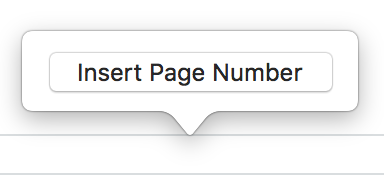
Click Insert Page Number, then choose a numbering style.
The number that’s added is based on the page you’re currently on and whether there are other sections in the document with number settings that impact it.
You can add page numbers anywhere in body text, or in a shape, text box, or table cell.
Place the insertion point in the text where you want the page number to appear, or double-click in a shape, text box, or table cell.
Click  in the toolbar, then choose Page Number.
The number that’s added is based on the page you’re currently on and whether there are other sections or pages in the document with number settings that impact it.
You can set a starting page number for a page in a page layout document or for a section in a word-processing document.
Do one of the following:
In a word-processing document: Click anywhere in a page for the section you want to edit, then in the Document sidebar, click the Section tab.
In a page layout document: Click the page you want to edit in page thumbnail view on the left, then open the Format  sidebar. If you don’t see Page Layout at the top of the sidebar, make sure nothing is selected on the page and try again.
Below Page Numbering, click the Format pop-up menu and choose a numbering style.
To set the starting page number, choose one of the following:
“Continue from previous page” (for a page layout document), or “Continue from previous section” (for a word-processing document).
“Start at,” then click the up or down arrow to set a starting number.