
You can change the page view to see more or less detail as you work in your document.
You might want to enlarge (zoom in) or reduce (zoom out) your overall view of a document. For example, zoom in to focus on fine-tuning the placement of a caption, or zoom out to work on the layout of your document.
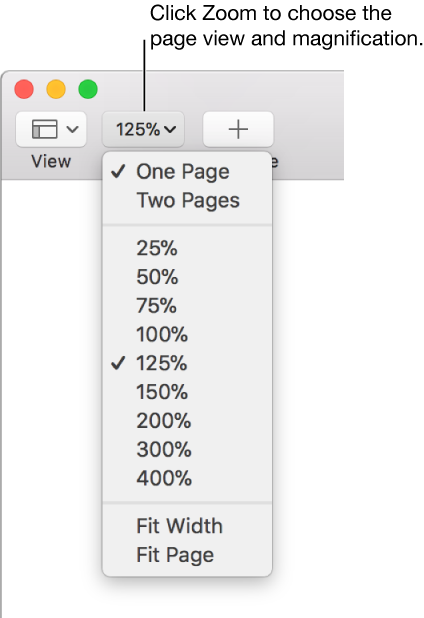
Click the Zoom pop-up menu in the toolbar and choose an option:
A percentage: The document enlarges or reduces to the specific percentage.
Fit Width or Fit Page: When One Page is selected, Fit Width zooms the page to fill the document window horizontally. Fit Page shows the whole page within the document window.
Fit Page Width or Fit Spread: When Two Pages is selected, Fit Page Width zooms one page to fill the document window horizontally (scroll horizontally to see both pages in the spread). When Fit Spread is selected, both pages of the spread fill the document window horizontally.
By default, Pages documents open at 125 percent, but you can change that setting.
Choose Pages > Preferences (from the Pages menu at the top of your screen).
Click General at the top of the preferences window, then click the Default Zoom pop-up menu and choose a percentage.
You can expand the Pages window to fill the entire computer screen.
Do one of the following:
Click the green button in the top-left corner of the Pages window.
Choose View > Enter Full Screen (from the View menu at the top of your screen).
To see the Pages menu bar and other controls, move the pointer to the top of the screen.
To return to regular view, do one of the following:
Move the pointer to the top of the screen, then click the green button.
Choose View > Exit Full Screen.
Press the Escape key on your keyboard.
Tip: When you open multiple documents in full screen, they open in tabs instead of in separate windows. You move between the documents by clicking the tabs in the tab bar. To have all documents open in separate windows instead, choose Apple menu > System Preferences, then click Dock. Click the “Prefer tabs when opening documents” pop-up menu, then choose Manually.
You can show two pages side-by-side as you work. This is particularly helpful if your document uses facing pages (with designated left and right pages).
Click the Zoom pop-up menu in the toolbar and choose Two Pages.
Do any of the following to adjust the page view:
Fit the pages in the document window: Click the Zoom pop-up menu and choose Fit Spread.
Increase or decrease the size of the pages: Click the Zoom pop-up menu and choose a percentage, or choose Fit Page Width, which zooms one page to fill the document window horizontally.
Depending on the zoom percentage, you may have to scroll the document horizontally to see both pages.
To return to a one-page view, click the Zoom pop-up menu and choose One Page.