
Resizing a table makes the table larger or smaller; it doesn’t change the number of rows and columns it contains.
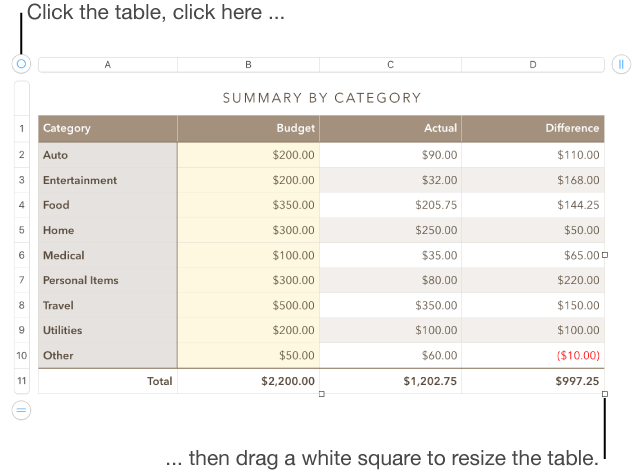
Click the table, then click  in the upper-left corner.
Drag any of the white squares on the edge of the table to make the table larger or smaller:
Resize the rows and columns simultaneously: Drag the white square in the corner.
Resize the table proportionally: Shift-drag the white square in the corner.
Click the table, then drag in the upper-left corner.
Note: If the table doesn’t move freely, it might be set to move along with text as you type. To change this setting, click the table, click the Arrange tab at the top of the sidebar on the right, then click Stay on Page.
If you don’t see a sidebar, or the sidebar doesn’t have an Arrange tab, click  in the toolbar.
You can lock a table so that it can’t be edited, moved, or deleted.
Do one of the following:
Lock a table: Click the table, then choose Arrange > Lock (from the Arrange menu at the top of your screen).
Unlock a table: Click the table, then choose Arrange > Unlock.