
You can collaborate with others in real time by sharing a link to your Pages document. Since shared documents and any changes to them are saved in iCloud, people working in the document can see the changes as they’re made.
As the owner of the document, you control who has access to it, and what they can do:
Document access: You can send a document link that anyone can use to open the document. Or, you can invite specific people, who must sign in to iCloud with their Apple ID to open the document.
Editing permission: You can choose whether others can make changes to the document or only view it.
You can change access and permission settings or stop sharing a document at any time.
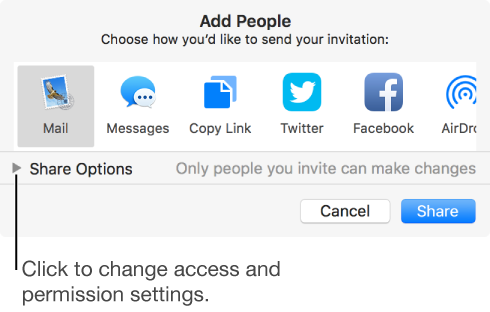
To invite others to collaborate on a document, you must be signed in to iCloud and have iCloud Drive turned on.
If you invite only specific people to collaborate on your document, they must be signed in to iCloud to view or edit the document. If you invite someone using an email address or phone number that isn’t associated with their Apple ID, the person won’t be able to accept the invitation until they add the email address or phone number to their Apple ID. Instructions are provided when they click the link in the invitation.
To view or edit a shared document, people you share with need any of the following:
A Mac with macOS Sierra v10.12 or later and Pages 6.0 or later installed. They must also be signed in to iCloud and have iCloud Drive turned on.
An iOS device with iOS 10 and Pages 3.0 or later installed. They must also be signed in to iCloud and have iCloud Drive turned on.
A Mac or Windows computer with a supported browser.
Anyone with an Android device, or an iOS device without iOS 10 and Pages 3.0 or later, can view the document but not edit it.
Note: Not all Pages features are available for a document that’s shared. See this Apple Support article for information.