
Create a custom template from a Blank template
In Pages, choose File > Open, then click New Document.
The template chooser opens.
In the template chooser, double-click a Blank template.
Click the Style button near the top of the sidebar on the right.
If you don’t see a sidebar, or the sidebar doesn’t have a Style button, click
 in the toolbar.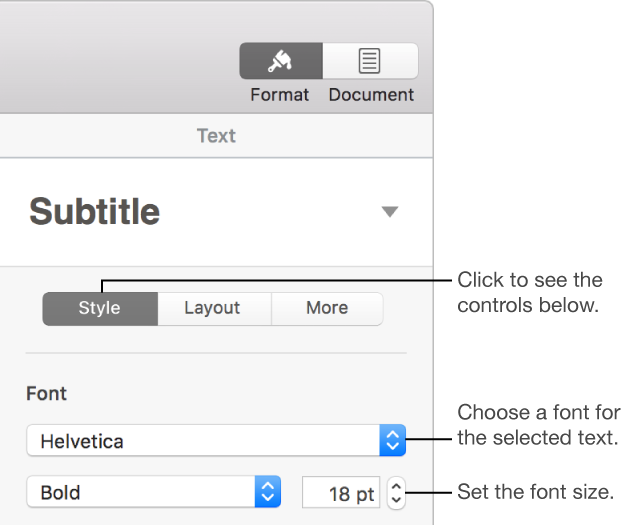
Click the paragraph stye at the top of the sidebar (in the example above, it’s Subtitle), then choose the style you want to modify.
Tip: You don’t have to modify every paragraph style in the template; for example, for a simple letter or document, you may want to modify only the body text style and a heading style.
In the Font section of the sidebar, choose a font and font size for the paragraph style you selected.
You can also use other controls in the Font section to choose character styles like bold and italic, and change the text color.
Click the Update button that appears next to the paragraph style.
The default style is updated with your changes. You can rename the style and delete styles you don’t want to keep.
If you typed in the template, delete any text that you don’t want to appear every time you open the template.
For example, you may want to include your name and address in a letter template, but not sample text that you typed to set up your paragraph styles.
When you’re finished, choose File > Save As Template (from the File menu at the top of the screen).
The original Blank template is still available from the template chooser.
Click Add to Template Chooser, then type a name for your new template.
The template is added to the My Templates category of the template chooser.
Tip: In Pages preferences you can set your template to always open when you choose File > New. To learn how, see Set a default template.
For more information about creating and installing custom templates, see Install and manage document templates.