Add links for websites and email addresses

Pages automatically formats website addresses (URLs) and email addresses you type as interactive links. You can edit these links or deactivate them so that they appear and behave as normal text.

If you don’t want Pages to automatically format links, you can turn off Smart Links.

Use a word or phrase as a link

You can make a word or phrase a link without showing its associated URL or email address in your document.

  1. Select the text you want to turn into a link.

  2. Do one of the following:

    • Click Insert button in the toolbar, then choose Add Link.

    • Choose Format > Add Link (from the Format menu at the top of your screen).

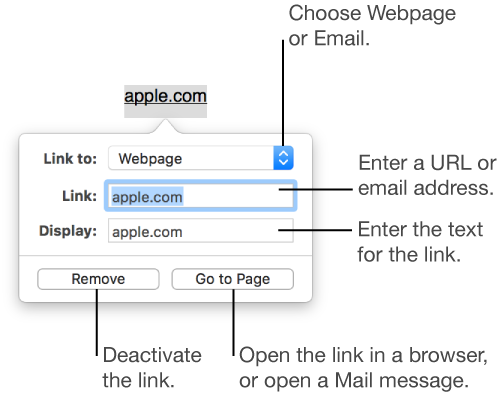
  3. Click the “Link to” pop-up menu, then choose Webpage or Email.

  4. Do one of the following:

    • For a website: Enter a URL in the Link field.

    • For an email address: Enter an email address and subject in the To and Subject fields.

  5. Click Go to Page to verify the link.
Edit or deactivate a link

Do one of the following:

Turn off automatic formatting for links

If you don’t want Pages to automatically format links as clickable text, you can turn off Smart Links.

  1. To turn off automatic formatting for just specific text, rather than for the whole document, select that text.

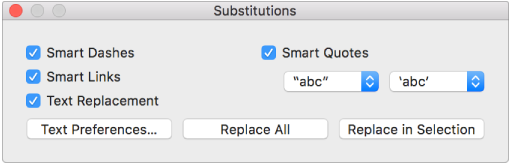
  2. Choose Edit > Substitutions > Show Substitutions (from the Edit menu at the top of your screen).

    The Substitutions window
  3. Deselect the Smart Links checkbox.

  4. Click Replace All to remove formatting from all automatically formatted links in the document, or click Replace in Selection to remove formatting just from the selected text.

When Smart Links is turned on for the document, a checkmark appears next to Smart Links in the Substitutions menu. You can deselect Smart Links in the menu to turn it off, but existing links won’t change unless you select the text that contains them, then follow the steps above.

Tip: You can add a button to the toolbar that opens the link window for selected text.