You can modify a chart’s data (numbers, dates, or durations) at any time. You can add and remove entire data series, or edit a data series by adding or deleting specific data from it.
Click the chart to select it, click Edit Chart Data, then do any of the following:
Add a data series: Click a cell in a new row or column in the Chart Data editor, enter your data, then press Return or Tab. Repeat this until you’ve entered the entire data series.
Remove a data series: Click the colored bar for the row or column you want to delete, click the arrow that appears, then click Delete Column or Delete Row (depending on whether you plotted rows or columns as data series).
Reorder data series: Drag the colored bar to reorder the data series.
Add a currency symbol or other formatting: Click the Series tab at the top of the sidebar on the right, then use the controls in the Series tab to add value labels or other formatting.
Close the Chart Data editor to return to the chart.
When you add a chart, Pages defines default data series for it. In most cases, if a table is square or if it’s wider than it is tall, the table rows are the default series. Otherwise, the columns are the default series. You can change whether rows or columns are the data series.
Click the chart to select it, then click the Edit Chart Data button near the chart.
Click the row or column button in the top-right corner of the Chart Data editor.
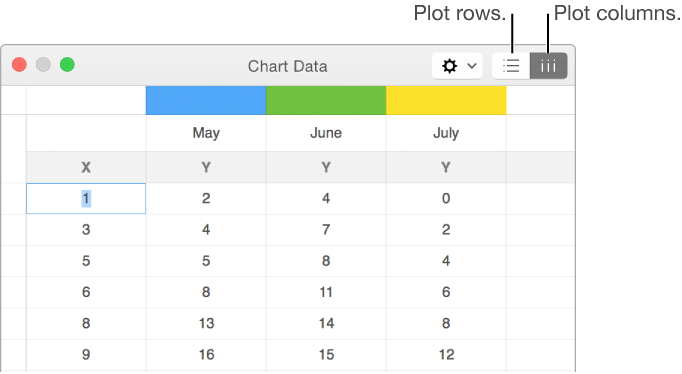
Close the Chart Data editor when you’re done.
Sharing the x-axis means plotting a single kind of value along the x-axis, while allowing for multiple kinds of values plotted along the y-axis. By default, the x-axis values are shared among multiple sets of y-axis values in some types of charts.
Click the chart to select it, then click Edit Chart Data.
Click
, then select (or deselect) Share X Values.
Close the Chart Data editor when you’re done.
If you can’t edit a chart, you may need to unlock it.