Create and organize chart styles

You can customize the look of a chart and create a new style from the customized chart. You can also create a new chart style that reflects the colors in a favorite image. The new styles are saved along with the styles that come with the template, and you can apply them to other charts.

Save a chart as a new style

  1. Select the chart with the changes you want to save as a new style.

  2. Click the Chart tab at the top of the sidebar on the right.

    If you don’t see a sidebar, or the sidebar doesn’t have a Chart tab, click Format button in the toolbar.

  3. Click the triangle to the right of the chart styles to go to the last group of styles.

  4. Click New style button to add your style.

  5. In the dialog that appears, choose an option:

    • All series styles: Keep all available series styles associated with the chart.

    • Only visible series styles: Keep only the series styles currently visible in the chart.

  6. Click OK.

Your new chart style is added to the chart styles at the top of the sidebar. You can drag styles to organize them however you like, or replace them.

Create a chart style that reflects the colors in an image

You can create a new chart style that matches the colors of a particular image. This can be helpful when you want to make a visual connection between the data shown in the chart and the subject of the image.

The new style is based on the type of chart currently showing in the sidebar, but it uses the colors of the image from which it was created.

  1. Click to select a chart, or click Chart button in the toolbar to add a chart.

  2. Click the Chart tab at the top of the sidebar to the right.

    If you don’t see a sidebar, or the sidebar doesn’t have a Chart tab, click Format button in the toolbar.

  3. Choose an image with colors you like from anywhere on your computer.

    To browse your photos, click Media button in the toolbar.

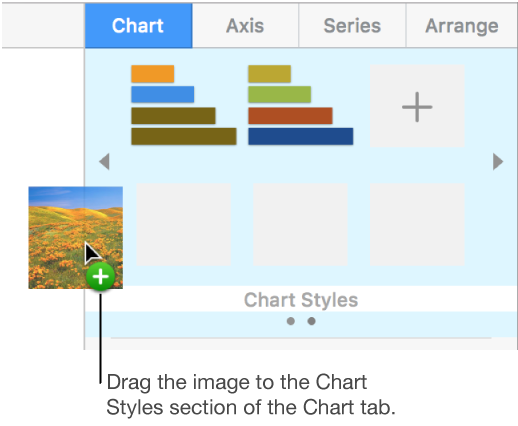
  4. Drag the image to the chart styles in the sidebar.

    Dragging an image into the chart styles menu to create a new style

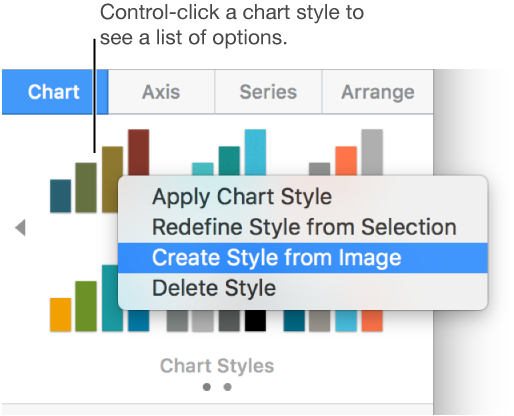
    Alternatively, you can Control-click a chart style, choose Create Style from Image from the shortcut menu, then browse for an image.

    The chart style shortcut menu

    The new chart style is added to the chart styles at the top of the sidebar. The new style doesn’t replace the style you Control-clicked.

  5. To apply the new style to the selected chart, click the style in the sidebar.

Redefine a chart style

You can quickly change the look of all charts that use the same style by changing one or more style attributes, then redefining the style to incorporate the changes.

  1. Click a chart that uses the style you want to update, then modify its appearance so it looks the way you want.

  2. Select the chart you just modified (if you deselected it).

  3. Click the Chart tab at the top of the sidebar on the right.

    If you don’t see a sidebar, or the sidebar doesn’t have a Chart tab, click Format button in the toolbar.

  4. Control-click the style, then choose Redefine Style from Selection.

  5. If your chart has fewer than six data series, a dialog appears. Choose an option:

    • All series styles: Keep all available series styles associated with the chart.

    • Only visible series styles: Keep only the series styles currently visible in the chart.

  6. Click OK.

    The style is updated in the sidebar, and all charts that use the style are updated.

Organize or delete chart styles

You can change the order of the chart styles at the top of the sidebar, or delete any style.

  1. Click a chart on the canvas, then click the Chart tab at the top of the sidebar on the right.

    If you don’t see the sidebar, or the sidebar doesn’t have a Chart tab, click Format button in the toolbar.

  2. Click and hold the style you want to move until it flashes.

  3. Drag the style to a new location.

    To move a style from one group to another, drag it over the gray arrow to the left Previous styles button or right Next styles button of the styles to open another group, then drag the style to where you want it.

To delete a style, Control-click it, then choose Delete Style.

See also
Use object styles
Change the look of a chart
Change a chart from one type to another