Raise and lower characters and text

There are two ways to raise or lower text in relation to adjacent text:

Make characters superscript or subscript

  1. Select one or more characters you want to raise or lower.

  2. Click the Style button near the top of the sidebar on the right.

    If you don’t see a sidebar, or the sidebar doesn’t have a Style button, click Format button in the toolbar. If the text is in a text box, table, or shape, first click the Text tab at the top of the sidebar, then click the Style button.

  3. In the Font section, click Advanced options checkbox, click the Baseline pop-up menu, then choose Superscript or Subscript.
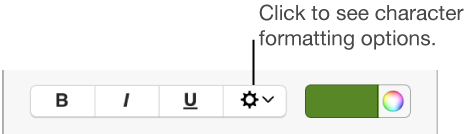
    The Advanced Options checkbox next to Bold, Italic, and Underline buttons
  4. If you want to continue typing regular text right after the superscript or subscript, click directly after the superscript or subscript character, click Advanced options checkbox in the sidebar, click the Baseline pop-up menu, then choose Default.

You can also use keyboard shortcuts to quickly apply superscript or subscript to selected text. For superscript, press Control-Shift-Command-Plus Sign (+). For subscript, press Control-Command-Minus Sign (-).

Raise and lower text without changing its size

If you want to make text higher or lower than the text next to it without changing its size, adjust its baseline shift.

  1. Select one or more characters you want to raise or lower.

  2. Click the Style button near the top of the sidebar on the right.

    If you don’t see a sidebar, or the sidebar doesn’t have a Style button, click Format button in the toolbar. If the text is in a text box, table, or shape, first click the Text tab at the top of the sidebar, then click the Style button.

  3. In the Font section, click Advanced options checkbox, then click the arrows next to the Baseline Shift value to raise or lower the selected text.

    The Advanced Options checkbox next to Bold, Italic, and Underline buttons

Apply superscript and subscript from the toolbar

You can add buttons to the Pages toolbar to quickly apply superscript and subscript to selected text. The buttons appear in the toolbar of every Pages document.

  1. Choose View > Customize Toolbar (from the View menu at the top of your screen).

    Note: The View menu in the Pages toolbar doesn’t have this option.

  2. Drag the Superscript and Subscript buttons to the toolbar.

  3. Click Done.

To remove the buttons, choose View > Customize Toolbar, then drag the buttons away from the toolbar until they disappear.

See also
Adjust character spacing
Format an equation with MathType
Create and use character styles