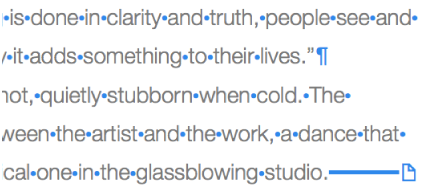

Formatting symbols (called invisibles) like the ones shown below are added every time you press the Space bar, Tab, or Return, and when you add a column break, page break, or section break. By default, you can’t see them, but you can turn them on to see where formatting changes have been applied. You can hide them again when you don’t need to see them.
You can use Layout View to show the faint gray boxes that outline the different text areas of your document—including headers, footers, columns, text boxes, and the document body (the main area of text in the document). This view can help you troubleshoot layout problems.
Do one of the following:
Show invisibles: Choose View > Show Invisibles (from the View menu at the top of your screen).
Note: The View button in the toolbar doesn’t have this command.
Hide invisibles: Choose View > Hide Invisibles.
Note: You can’t add layout breaks—they appear automatically when you adjust columns for selected text.
Choose Pages Preferences (from the Pages menu at the top of your screen).
Click General, then click the color well next to Invisibles to choose another color.
Do one of the following:
Show layout view: Choose View > Show Layout (from the View menu at the top of your screen).
Note: The View button in the toolbar doesn’t have this command.
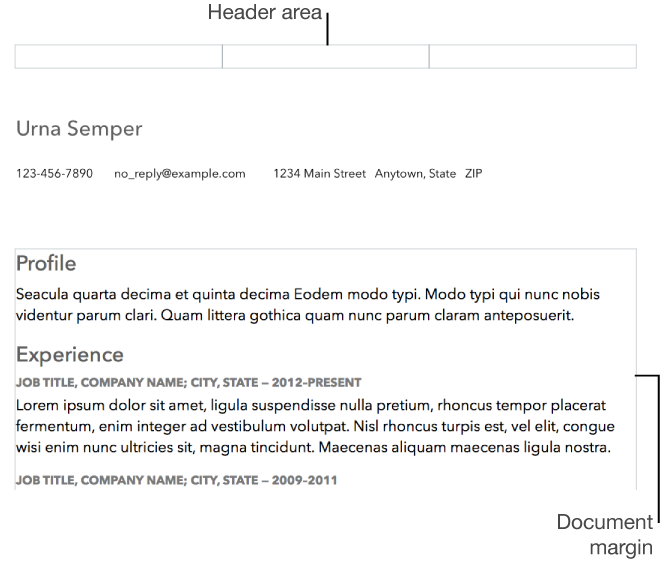
Hide layout view: Choose Hide Layout (from the View menu at the top of your screen).
Invisible Character | Represents |
|---|---|
| Space |
| Nonbreaking space (Option–Space bar) |
| Tab |
| Line break (Shift-Return) |
| Paragraph break (Return) |
| Page break |
| Column break |
| Layout break |
| Section break |
| Anchor point for objects set to “Move with Text” and any text wrap option except “Inline with Text.” |


