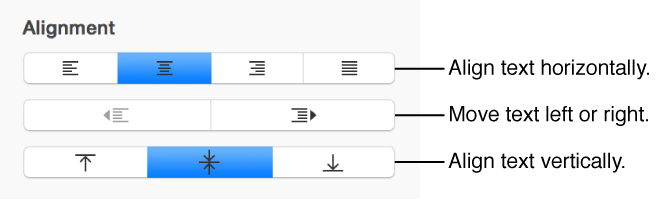
You can add text inside a shape, text box, or table cell, then align it horizontally and vertically within the space.
Double-click the shape to make the insertion point appear, then type your text.
If there’s too much text to display in the shape, a clipping indicator (+) appears. To resize the shape, click it, then drag any selection handle until all the text is showing.
You can format the text just like body text. To show the text formatting controls, select the text, click the Text tab in the sidebar on the right, then click the Style button near the top of the sidebar.
Select the text.
Click the Text tab at the top of the sidebar on the right.
If you don’t see the sidebar, or it doesn’t have a Text tab, click
in the toolbar.
Click the Style button near the top of the sidebar, then any of the alignment buttons.