Add or delete paragraph styles

You can add your own paragraph styles and delete styles you don’t want to keep. When you add or delete a style, it affects the current document only, not all documents you create using Pages.

Create a new paragraph style

To add a new style, you first modify the text of a paragraph in your document to look the way you want, then create the new style based on that text.

  1. In your document, click anywhere in the paragraph you want to base the new style on.

  2. Click the paragraph style name at the top of the sidebar on the right.

    If you don’t see the sidebar, or it doesn’t have text controls, click Format button in the toolbar. If the text is in a text box, table, or shape, click the Text tab at the top of the sidebar.

  3. Click New style button at the top of the Paragraph Styles pop-up menu.

    A new style with a placeholder name appears in the pop-up menu.
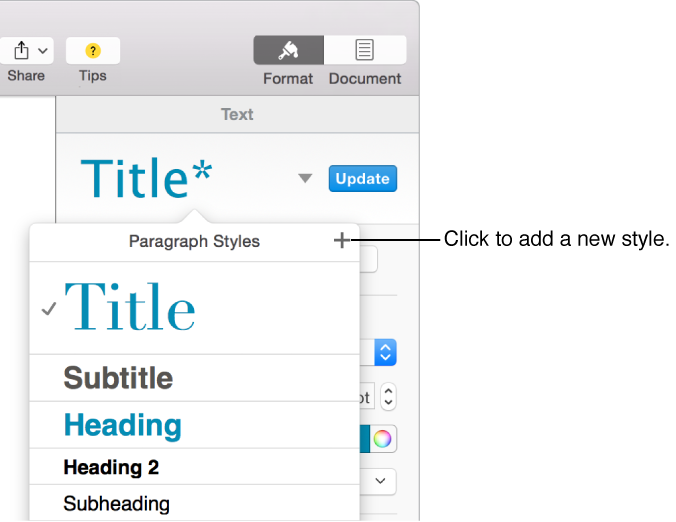
    Paragraph Styles menu with callout to the New Style button
  4. Type a name for the new style, then click outside the menu to close it.
Delete a style

You can delete a style from the paragraph styles list. You might want to do this to simplify the pop-up menu to include just the styles you use most.

  1. Click anywhere in your document text.

  2. Click the paragraph style name at the top of the sidebar on the right.

    If the text is in a text box, table, or shape, click the Text tab at the top of the sidebar to see paragraph styles.

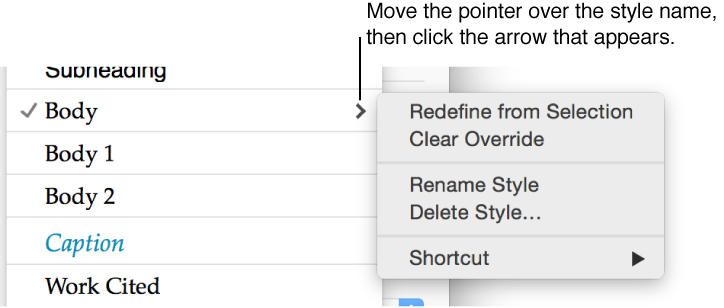
  3. In the Paragraph Styles pop-up menu, move the pointer over the name of the style you want to delete, then click the arrow that appears.

  4. Choose Delete Style.

    Paragraph Styles pop-up menu with a submenu of options for Redefine from Selection, Clear Override, Rename Style, Delete Style, and Shortcut

If you try to delete a style that’s being used in the document, you’re asked to choose a style to replace the one you’re deleting.

Tip:  You can drag styles in the Paragraph Styles pop-up menu to organize them.