
A document can contain footnotes, which appear at the bottom of the page, or endnotes, which appear at the end of the document or a section. You can’t have both footnotes and endnotes in the same document, but you can convert all notes in the document from one type to another.
By default, footnotes and endnotes are numbered continuously throughout the document with arabic numerals, but you can change this formatting.
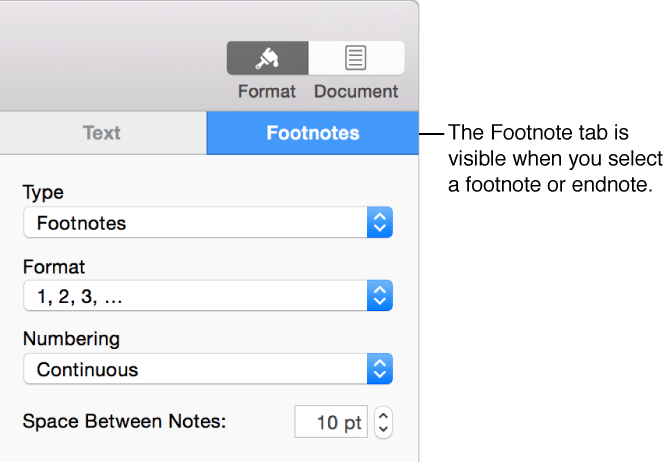
Use controls in the Footnotes tab of the sidebar to format footnotes and endnotes.
The first time you insert a note, it’s a footnote by default. If you want document or section endnotes rather than footnotes, you must first add a footnote and then convert it to an endnote.
Note: You can only add a citation to the body text in a word-processing document, not to a text box.
Click in the text where you want to insert the symbol for a footnote or an endnote.
Click  , then choose Footnote.
The symbol is inserted in the text, and the insertion point moves to the footnote text field at the bottom of the page.
Enter the footnote text.
Because a document can contain only one type of note, all notes in the document are changed when you convert a note from one type to another.
Click any note in your document.
Blue boxes appear around all the notes in the document.
Click the Footnotes tab at the top of the sidebar on the right.
If you don’t see a sidebar, or it doesn’t have a Footnotes tab, click  in the toolbar.
Click the Type pop-up menu and choose a note type.
Footnotes move to the bottom of the page. Endnotes move to the last page of the document. Section endnotes move to the last page of the section in which they’re placed.
When you select a footnote or endnote, blue boxes appear around all the notes in the document. If you modify the look of the text while they’re all selected, all notes are updated at once. To change only the text in a particular note, select only the text you want to change.
Click a note, or select the note text that you want to modify.
Click the Text tab at the top of the sidebar on the right, then click the Style button.
If you don’t see a sidebar, or it doesn’t have Footnotes and Text tabs, click in the toolbar.
Use any of the controls in the Font section to change how the font looks.
You can use numbers or other symbols, such as asterisks (*) or daggers (†), to indicate notes.
Click any note in your document.
Blue boxes appear around all the notes in the document.
Click the Footnotes tab at the top of the sidebar on the right.
If you don’t see a sidebar, or it doesn’t have a Footnotes tab, click in the toolbar.
Click the Format pop-up menu and choose a style.
All symbols in the document are changed.
By default, footnotes and endnotes are numbered sequentially for the entire document, but you can restart the numbering (or the sequence of symbols) at the beginning of every page or document section (after each section break).
Click any note in your document.
Click the Footnotes tab at the top of the sidebar on the right.
If you don’t see a sidebar, or it doesn’t have a Footnotes tab, click in the toolbar.
Click the Numbering pop-up menu and choose an option.
Click in the text immediately after the symbol for the note you want to delete, then press Delete.
The note is removed, and the symbols for all remaining notes are adjusted to reflect their new positions in the sequence.
Tip: You can double-click a citation number to jump to its associated footnote or endnote, or double-click a note to jump to its citation number in the text.