Add headers, footers, and page numbers

You can add headers and footers that appear on every page, or hide headers or footers on the first page of a document. You can also insert page numbers, page counts, and the date and time in the header, footer, or anywhere else in your document.

Add headers and footers

  1. Move the pointer over the top or bottom of the page until you see the header or footer area, then click inside it.

    You can use just one or any combination of the three fields for your header or footer.

  2. Enter your text and page numbers (optional).

    Depending on the existing header and footer content, and whether you have more than one section in your document, you may see an option to start a new header or footer.

Tip:  If you’re having difficulty seeing the header and footer area, Choose View > Show Layout (from the View menu at the top of your screen). If you still don’t see the header or footer area, click Document radio button in the toolbar, click the Document tab at the top of the sidebar, then make sure the Header and Footer checkboxes are selected.

Delete headers and footers

  1. Click Document radio button in the toolbar.

  2. Click the Document tab at the top of the sidebar.

  3. Deselect the Header or Footer checkbox.

If you change your mind, press Command-Z to show the deleted text. Simply selecting the checkbox again won’t retrieve the deleted text.

Hide headers and footers on the first page

You can hide the header and footer on the first page of a section (every document has at least one section).

  1. Click in the section you want to edit.

  2. Click Document radio button in the toolbar, then click the Section tab at the top of the sidebar.

  3. Select the checkbox next to “Hide on first page of section.”

Add the page number, page count, or date

You can insert a page number, the page count, or a date and time anywhere on a page. If you want this information to appear in the same location on every page, add it to the header or the footer.

  1. Click where you want to add the page number, count, or date.

    To place it in the header or footer, move the pointer over the top or bottom of the page until you see the header or footer area, then click where you want the information to appear.

  2. Do any of the following:

    • Add the information to the page: Click Insert button in the toolbar, then choose Page Number, Page Count, or Date & Time.

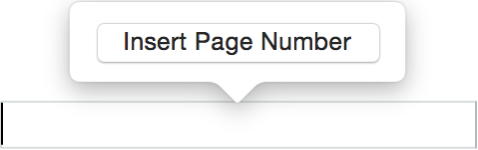
    • Add a page number in the header or footer: Click Insert Page Number, then choose a formatting option from the pop-up menu.

      The Insert Page Number pop-up above the footer

      Note:  The Insert Page Number pop-up menu appears only the first time you add the page number to a header or footer.

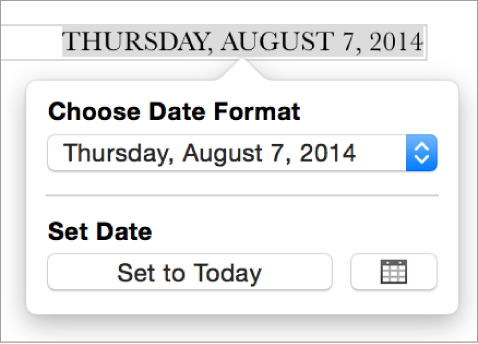
    • To insert the date, click Insert button in the toolbar and choose Date & Time. Then click the date to choose formatting options.

      The Date & Time pop-up showing a pop-up menu for date format and a Set to Today button

You can format the text and adjust its alignment using the controls in the Style tab of the sidebar on the right. If you don’t see a sidebar, or it doesn’t have a Style tab, click Format inspector button in the toolbar.

Change the page number sequence

Page numbers are normally sequential, but you can make a document section or page start with a specific number.

  1. Click next to the page number you want to change.

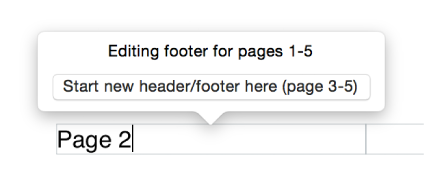
    A panel appears that indicates which page header or footer you’re editing.

    Controls for editing footnotes
  2. Click the “Start new header/footer here” button.

    A new section is created, and the page number is incremented from the previous page.

  3. Click Document radio button in the toolbar, then click the Section tab at the top of the sidebar.

  4. In the Page Numbering section, Select “Start at” and enter a new starting number.

See also
Format sections