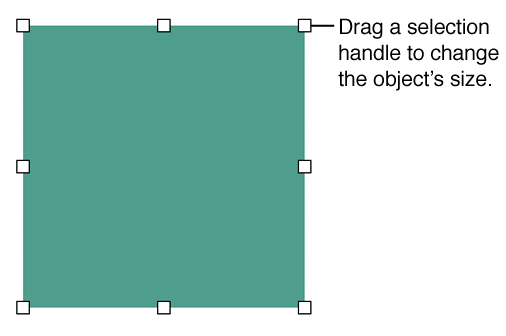
You can resize any object. Only shapes, text boxes, and images can be rotated or flipped.

Select an object.
Do one of the following:
Resize an object: Drag its selection handles.
Resize an object and maintain its proportions: Press the Shift key as you drag any selection handle.
Resize an object to specific dimensions: Click the Arrange tab in the sidebar on the right. In the Size section, enter values or click the arrows in the Width and Height fields.
If you want to always constrain proportions while resizing a selected object, click the Arrange tab in the sidebar, then select the “Constrain proportions” checkbox.
Select the shape, text box, or image.
Click the Arrange tab at the top of the sidebar on the right.
If you don’t see the sidebar, or it doesn’t have an Arrange tab, click
in the toolbar.
Drag the Rotate wheel or enter a degree value in the adjacent field to specify the angle at which you want to rotate the object.
Tip: You can also press the Command key while your pointer is over a selection handle, then drag to rotate the shape, text box, or image.
Select a shape, text box, or image.
Click the Arrange tab at the top of the sidebar on the right.
If you don’t see the sidebar, or it doesn’t have an Arrange tab, click
in the toolbar.
Click a Flip button to flip an object vertically or horizontally.
Tip: You can add these buttons to the toolbar: Flip Horizontal and Flip Vertical.