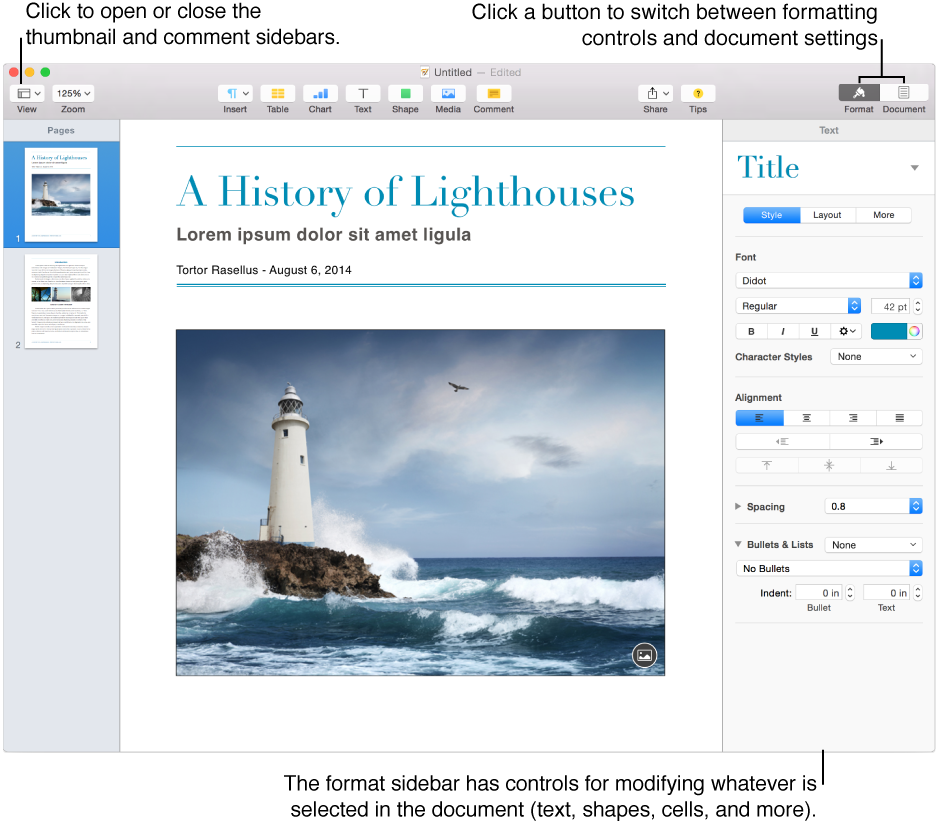

The Pages window has sidebars on the left and right that show controls and settings, page thumbnails, and comments. You can show or hide the sidebars at any time.
The Comments & Changes pane and Thumbnail View sidebars on the left can be open at the same time. The right sidebar shows either the Format inspector or the Document inspector. You can click their buttons in the toolbar to switch from one to the other. If you click the button for the inspector that’s visible, the whole sidebar closes. To reopen the sidebar, click the button again.
Comments & Changes pane: Click  on the left side of the toolbar, then choose Show Comments & Changes Pane (if changes aren’t being tracked, choose Show Comments). To hide it, choose Hide Comments & Changes Pane (or Hide Comments Pane).
You can use this sidebar to read and manage comments and changes made by you and others.
Page thumbnails: Click on the left side of the toolbar, then choose Show Page Thumbnails. To hide thumbnails, choose Hide Page Thumbnails.
You can use this view to rearrange sections of a document and to navigate to a particular page (by clicking its thumbnail).
Format inspector: Click  on the right side of the toolbar. To hide the entire sidebar, click again.
You can also choose View > Inspector > Format (from the View menu at the top of your screen).
The Format inspector shows formatting controls for whatever you select in the document. For example, if you select text, you see only text controls, not controls for formatting a table or a shape. If nothing is selected, the sidebar is empty.
Document inspector: Click  on the right side of the toolbar. To hide the entire sidebar, click again.
The Document inspector shows controls for document formatting, such as page orientation and size, margins, headers and footers, and sections.