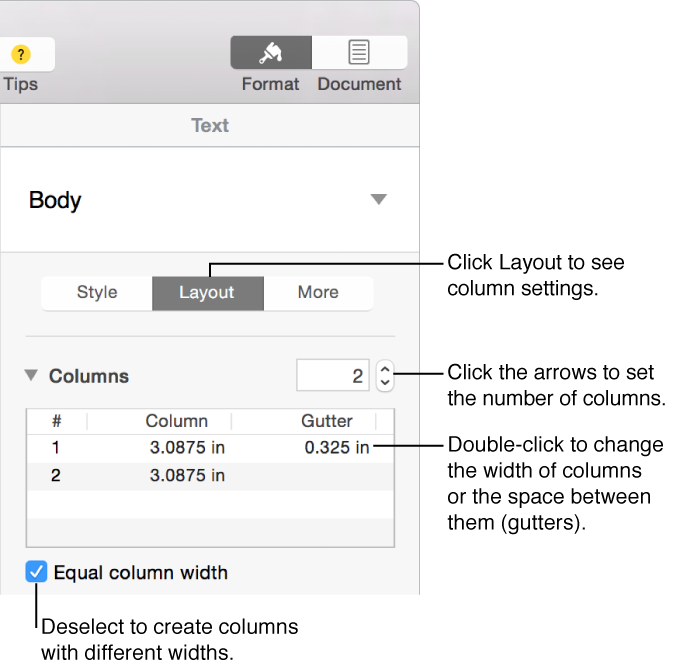
Change the number of text columns
Do one of the following:
For specific paragraphs: Select the paragraphs you want to change.
For the whole document: Click in any text in the document.
For text in a text box: Select the object.
Click the Layout button near the top of the sidebar on the right.
If you don’t see a sidebar, or it doesn’t have a Layout button, click
 in the toolbar. If the text is in a text box, table, or shape, first click the Text tab at the top of the sidebar, then click the Layout button.
Use the controls in the Columns section to set the number of columns and their spacing.