
Resize rows and columns
Click the table.
Do any of the following:
Manually resize: Move your pointer over the right edge of the lettered bar for the column you want to resize, or over the bottom of the numbered bar for the row, until you see
 , then drag to resize.
To resize multiple columns or rows at a time, select them first. Move your pointer over the edge of the rightmost lettered bar or the bottommost numbered bar, then drag when you see
. They are resized proportionally to each other. To resize them to be the same size, Option-drag.If the visible tables on the page are set to Stay on Page (in the Arrange tab at the top of the sidebar on the right), alignment guides appear when the tables’ rows or columns align.
Make all rows the same height or all columns the same width: Select the table, then choose Format > Table > Distribute Rows Evenly or Table > Distribute Columns Evenly (from the Format menu at the top of your screen).
Make several rows the same height or several columns the same width: Select a row or column, then Command-click the other rows or columns. Choose Format > Table > Distribute Rows Evenly or Table > Distribute Columns Evenly (from the Format menu at the top of your screen).
Shrink a row or column to fit its contents: Control-click the row number or column letter. In the sidebar on the right side of the pages window, click the Table tab, then choose an option (Fit Height to Content, Fit Width to Content, or Fit).
If you don’t see the sidebar or it doesn’t have a Table tab, click
 in the toolbar.
Resize precisely: Click a cell in the row or column you want to change. In the sidebar on the right, click the Table tab, then click the disclosure triangle next to Row & Column Size. Click the arrows to specify the size you want.
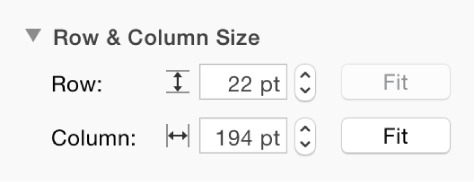
The entire row or column is resized. Selecting cells from more than one row or column resizes all of the rows or columns included in the selection.
To resize all rows or columns in a table, select the table, then drag a selection handle (a white square).