Move a table
Click anywhere in the table.
Drag
 in the top-left corner to move the table to where you want it.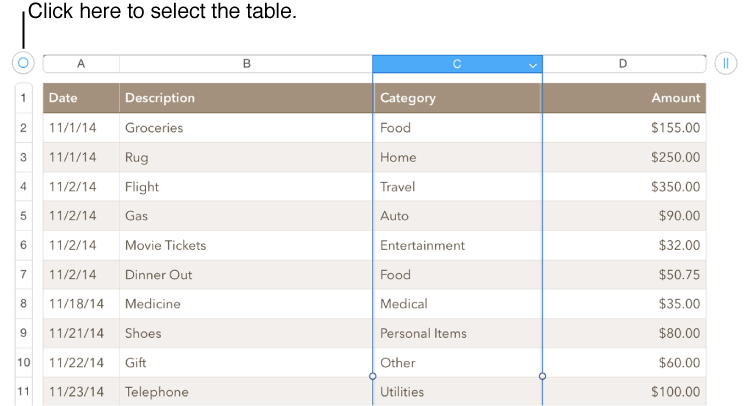

When you click a table, controls appear around it so you can select, move, or resize it.
Click the table to select it.
Drag any of the selection handles (the white squares) on the edge of the table to make the table larger or smaller:
Resize the rows and columns simultaneously: Drag the white square in the corner.
Resize the table proportionally: Shift-drag the white square in the corner.
Click anywhere in the table.
Drag in the top-left corner to move the table to where you want it.
You can lock a table so that it can’t be edited, moved, or deleted.
Lock a table: Click anywhere in the table to select it, click the Arrange tab at the top of the sidebar on the right, then click Lock.
If you don’t see a sidebar, or it doesn’t have an Arrange tab, click  in the toolbar.
Unlock a table: Click anywhere in the table to select it, click the Arrange tab at the top of the sidebar, then click Unlock.