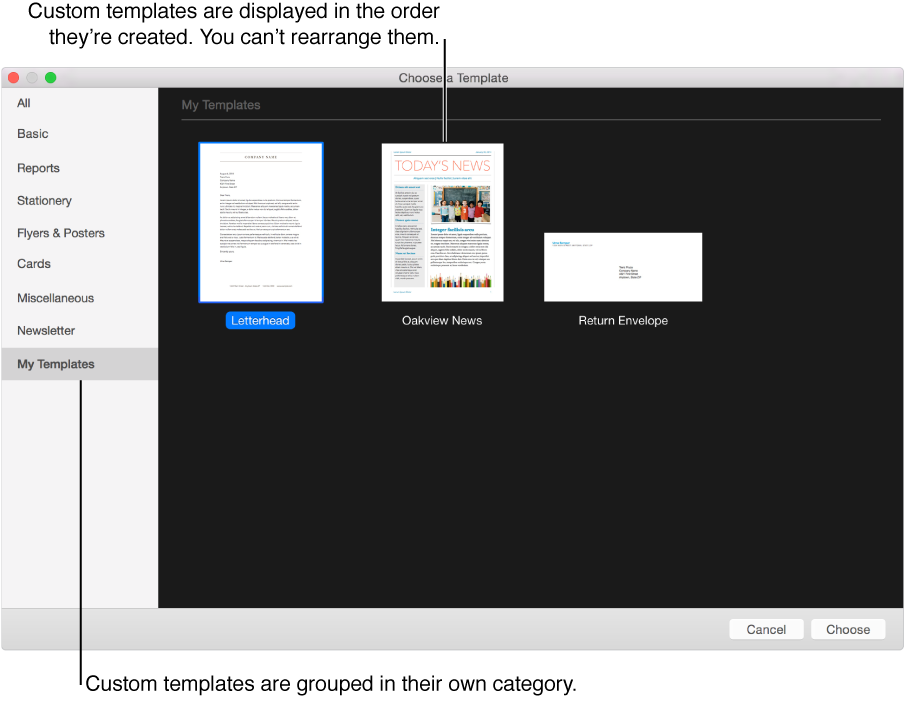

If you create a document that you want to use again as a model for other documents, you can save it as a template. Creating your own template can be as simple as adding your company logo to an existing template, or you can design a completely new template.
You can add your custom template to the template chooser, or save it as a file to share with others or to install and use on your iOS device. You manage custom templates in the document manager on your iOS device.
Choose File > Save as Template (from the File menu at the top of your screen).
Click an option:
Add to Template Chooser: Type a name for the template, then press Return. Your template appears in the My Templates category in the template chooser.
Save: Type a name for the template, then choose where you want to save it.
If you save it to iCloud, the next time you open Pages on your iOS device, the template appears as a downloadable file in the document manager.
When you create a new template, you start with an existing template (Blank, or any other template), make changes, then save it as a custom template. The original template remains unchanged. Custom templates appear in the My Templates category in the template chooser.
Note: Only templates that appear in the template chooser can be edited. If you want to edit a custom template that’s not in the template chooser, install it first (see the tasks below to learn how).
In Pages, choose File > New (from the File menu at the top of your screen), then double-click the template you want to edit.
Do any of the following:
Create a media placeholder: Select an image, then choose Format > Advanced > Define as Media Placeholder (from the Format menu at the top of your screen).
Create a text placeholder: Select the text, then choose Format > Advanced > Define as Text Placeholder (from the Format menu at the top of your screen).
Add a watermark or background object: Select the text or object, then choose Arrange > Section Masters > Move Object to Section Master (from the Arrange menu at the top of your screen). See Add watermarks and background objects to learn more.
Choose File > Save as Template (from the File menu at the top of your screen), then choose an option:
Add to Template Chooser: Type a name for the template, then press Return. Your template appears in the My Templates category in the template chooser.
Save: Type a name for the template, then choose where you want to save it.
If you save it to iCloud, the template appears as a downloadable file in the document manager the next time you open Pages on your iOS device.
If you don’t want to keep the original template, you can delete it from the template chooser. You can’t delete templates that came with Pages.
You can install a custom template saved to your computer or to a server, or a template that you received as an attachment in an email, by adding it to the template chooser in Pages.
Note: If you chose Add to Template Chooser when you saved your custom template, it’s already installed and can be found in the My Templates section of the template chooser.
Double-click the template file (it has the file extension “.template”), then click Add to Template Chooser.
You can set Pages to always open a new document from the same template instead of from the template chooser. Choose Pages > Preferences (from the Pages menu at the top of your screen). Click General, select “Use template,” then click Change Template to select a template.
On your iOS device, do the following to install a template from these sources:
iCloud: If Pages is set up to use iCloud on your device, the template appears automatically in the document manager and is identified by a template badge. Tap the template thumbnail, then tap Add.
Note: If you upgraded your iCloud account to use iCloud Drive, syncing may not work in all cases, depending on which versions of OS X and iOS you have installed. See this Apple Support article for more information.
AirDrop: Swipe up from the bottom of the screen to open Control Center, then tap AirDrop. Tap a discovery option, and when the AirDrop message appears, tap Add.
An email: In Mail, tap the attachment, then tap the screen. Tap  at the top of the screen, tap Open in Pages, then tap Add.
A WebDAV server: Download the template from the server, then tap the screen. Tap at the top of the screen, tap Open in Pages, then tap Add.
The template appears in the My Templates category in the template chooser.
You can also use iTunes to transfer files between your computer and your iOS device.
In the template chooser, Control-click the template name, then choose Rename or Delete.
If you’re renaming, type a new name, then press Return.
Custom templates always appear in My Templates in the template chooser. You can’t rearrange templates, and you can’t delete templates that came with Pages.