You can create a straight or curved line then customize its appearance by changing its width (thickness) or color, or by adding different endpoints—for example, an arrow, circle, or square.
Click
in the toolbar, then click a line.
Options include a straight line with or without endpoints, or a line with editing points to create a curved line.
Click near the middle of the line, then drag it to where you want it to appear on the page.
Drag the handles on the ends of the line to change the line length or rotation.
For curved lines, drag the green dot to change the arc.
Click the Style tab at the top of the sidebar on the right.
If you don’t see the sidebar, or it doesn’t have a Style tab, click
in the toolbar.
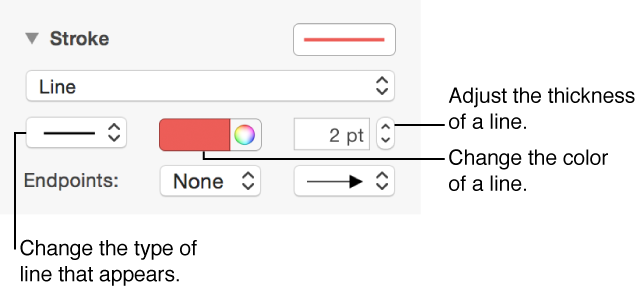
Click a line style at the top of the sidebar, or use the controls in the Stroke section to make any of the following adjustments:
Line type: Click the pop-up menu above Endpoints and choose an option.
Color: Click the left color well to choose a color that goes with the template, or click the color wheel to open the Colors window.
Thickness: In the field to the right of the color controls, click the arrows.
Endpoints: Click the Endpoints pop-up menus, then choose options to change the left endpoint and right endpoint.
You can edit a curved line to add right-angle corners or curves. As you edit, you can quickly change corners to curves and vice versa.
Select the line.
Click the Arrange tab at the top of the sidebar on the right.
If you don’t see the sidebar, or it doesn’t have an Arrange tab, click
in the toolbar.
Click the Curve or Corner button in the Connection section.
If you don’t see the buttons, make sure you selected a line with an editing point between the endpoints.
Drag the green dot to change the position of the angles or the curve.
You can join two objects with a curved, straight, or right-angle connecting line. If you move one or more of the objects, they remain joined by the line. This is especially useful if you’re creating a flowchart.
Select the objects.
Click the Arrange tab at the top of the sidebar on the right.
If you don’t see the sidebar, or it doesn’t have an Arrange tab, click
in the toolbar.
In the Object Placement section of the sidebar, click Stay on Page.
Choose Insert > Line > Straight Connection Line (from the Insert menu at the top of your screen, not from the Insert button in the toolbar).
You can also choose Curved Connection Line or Right Angle Connection Line.
To change the amount of space between the endpoints of the line and the objects, select the line, then adjust the Offset Start and End values in the Connection section of the sidebar.
You can also drag an endpoint of a connection line to an object set to Stay on Page. When the object shows a blue highlight, the connection is made.
You can change the appearance of the connection line just as you would any other line by changing its width, color, and more.
You can also save a line as a custom line style so you can apply it to other lines.