Pages supports bidirectional text, so you can enter and edit text written from left to right (such as in English or Chinese) and from right to left (such as in Arabic or Hebrew) in the same document. You can use bidirectional text in paragraphs, shapes, and tables.
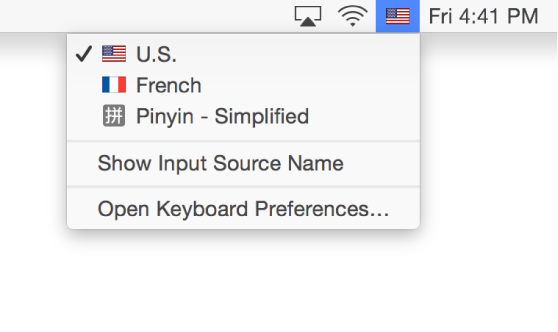
To use another language in your document, you must first set up an input source for it in Keyboard preferences (in System Preferences on your Mac). For more information, click Help in the menu at the top of your screen, then search for “input sources.”
You can use any Pages template to create a bidirectional document, but to use templates designed specifically for another language, you must first change the primary language of your computer to that language in System Preferences.
Note: If you add a new input source to your computer while Pages is open, restart Pages so that it recognizes the source.
Use another language in Pages
Important: If you haven’t already set up your Mac or iOS device to use another keyboard (input device) or language, see the instructions above.
Choose an input source from the Input menu on the right side of your computer’s menu bar.
The insertion point moves to the side of the document used by the language you select. For example, if you switch the input source from English to Hebrew, the insertion point moves to the right side of the document.
Change paragraph text direction
The ruler and its tab stops always match the direction of a paragraph, so when you change the text direction for selected text, the ruler also changes.
Click in a paragraph or list, or select text in a paragraph or list.
Click the Style button near the top of the sidebar on the right.
If you don’t see a sidebar, or it doesn’t have a Style button, click in the toolbar. If the text is in a text box, table, or shape, first click the Text tab at the top of the sidebar, then click the Style button.
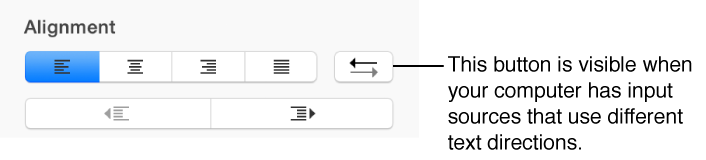
In the Alignment section, click .
The insertion point moves to the other side, and the paragraph direction changes.
Enter text, then press Return at the end of the paragraph.
The next paragraph continues in the same direction. To change its direction, click .
If you select multiple paragraphs with different text directions and then click , the paragraphs are formatted to match the first paragraph in the selection. If you select multiple shapes that contain text with different text directions, the text in the shapes is formatted to match the first shape you selected.
To learn how to type and edit bidirectional text, and to use some of the supporting features in OS X, click Help at the top of your screen and search for “bidirectional text.”

 in the
  .
.