
Resizing a table makes the table larger or smaller; it doesn’t change the number of rows and columns it contains.
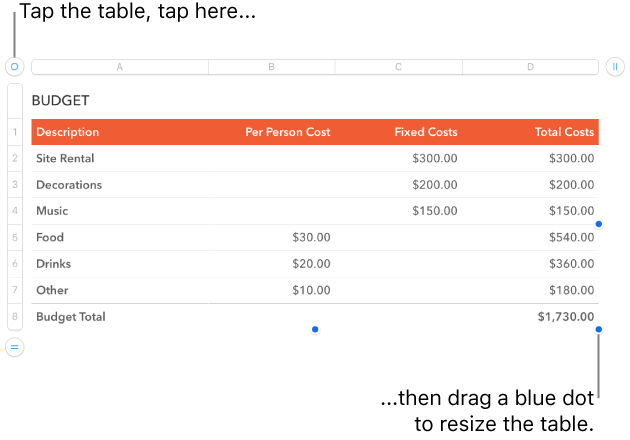
Tap the table, then tap  in its top-left corner.
Drag any of the blue dots on the edge of the table to make the table larger or smaller.
To resize the rows and columns simultaneously, drag the blue dot in the bottom-right corner.
Tap the table, then drag in its top-left corner.
You can lock a table so that it can’t be edited, moved, or deleted.
Do one of the following:
Lock a table: Tap the table, tap  , tap Arrange, then tap Lock.
Unlock a table: Tap the table, then tap Unlock.