
Whether you’re the owner of a shared document or have been invited to collaborate, after you open the document you can see the edits made by others in real time, hide or show editing activity, and more.
The number of people editing or viewing the document (not including you) appears on the Collaborate button  in the toolbar, and their names appear in the participant list.
When you receive a link to a shared document, what happens when you tap the link depends on the access and permission set by the owner, the Pages and iOS version installed on your device, and whether you’re signed in to iCloud.
Tap the link in the email, message, or post that you received.
If asked, sign in to iCloud with an Apple ID or follow any instructions that appear.
The document opens based on the following:
On a Mac: The document opens in Pages for Mac or in Pages for iCloud, depending on whether iCloud is set up on your Mac and you’re signed in; where you clicked the link (for example, in Mail on your Mac or on a webpage); and whether you have macOS High Sierra 10.13 or later and Pages 8.0 or later installed on your computer.
On iCloud.com on a Mac or Windows computer: If you’re signed in to iCloud.com in a web browser, the document opens in Pages for iCloud, and it’s added to your document manager and to iCloud Drive.
On an iOS device with iOS 11 or later and Pages 5.0 or later installed: The document opens in Pages on your iOS device and is added to your document manager.
On an Android device, or an iOS device without iOS 11 or later and Pages 5.0 or later installed: The document opens in a browser where you can view but not edit it.
If you’re having trouble accepting an invitation, make sure you meet the minimum system requirements for collaborating.
Open the shared document.
Tap Recents at the bottom of the document manager to see all shared documents and more easily find the one you want. If you can’t find the shared document, tap the link in the email, message, or post that you received, and if asked, sign in.
If you can’t open the document, see “Accept an invitation to collaborate,” above.
Edit the document.
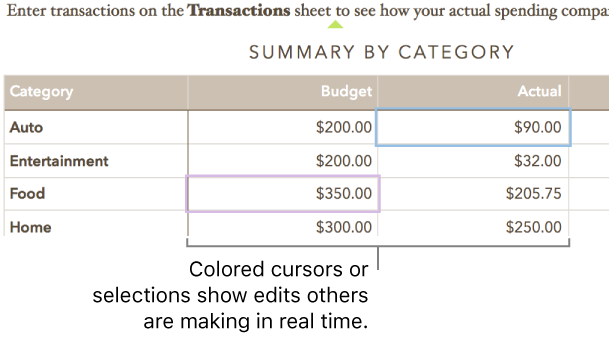
Edits you and others make to the document appear in real time. Colored cursors and colored selections of text and objects indicate where others are currently editing.
Do any of the following:
See who’s working in the document: Tap to open the participant list, which shows who has joined the document and who is currently editing or viewing it.
The number of people editing or viewing the document (not including you) appears on the button.
Follow someone’s edits: Tap the colored dot next to the person’s name. If you don’t see a colored dot, the person has the document open but isn’t actively participating.
Hide or show activity (colored cursors or selections): Tap  , then turn Collaboration Activity off or on.
Resolve conflicts: If you’re the document owner and there are conflicts, you see a dialog. Choose the version you want to keep; if you keep more than one, the most recent remains the shared version.
If you see an alert on the Collaborate button in the toolbar, your device is offline and you can’t edit the document until it’s online again. Check your Internet connection and wait for your device to reconnect.
If you no longer want to have access to a document that was shared with you, you can remove yourself from the participant list.
Do one of the following:
If the document is open: Tap  .
.
If the document is closed: With the document manager in browse view, tap Select in the top-right corner, tap a document (a checkmark appears), tap Share at the bottom of the screen, then tap Show People.
Tap your name, then tap Remove Me.
Removing your name from the participant list removes the document from your iCloud Drive. If you later want to access the document again, you can use the original link to open it.
Note: Not all Pages features are available for a document that’s shared with others. See the Apple Support article About collaboration for Pages, Numbers, and Keynote for information.