
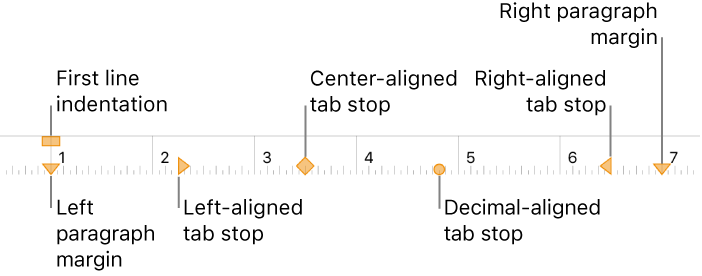
You can set tab stops to align text left, right, at the center, or on a decimal point. When you insert a tab, the insertion point (and any text after it) move to the right, to the next tab stop.
Tap the text to place the insertion point where you want to insert a tab stop.
Tap the text again, tap  , tap Insert, then tap Tab.
The insertion point moves to the closest tab stop. Tapping Tab again moves to the next tab stop, and so on.
To immediately undo a tab insertion, tap  .
.
Select the paragraphs you want to format.
Tap  , then tap Ruler.
Tap the ruler where you want to place a tab stop; a marker appears.
Touch and hold the marker until the section of ruler is magnified, then drag the marker to place it precisely.
To change the tab stop alignment, double-tap the tab stop until you see the alignment you want.
To remove a tab stop, touch and hold the tab stop marker, then drag it below the ruler until it disappears.