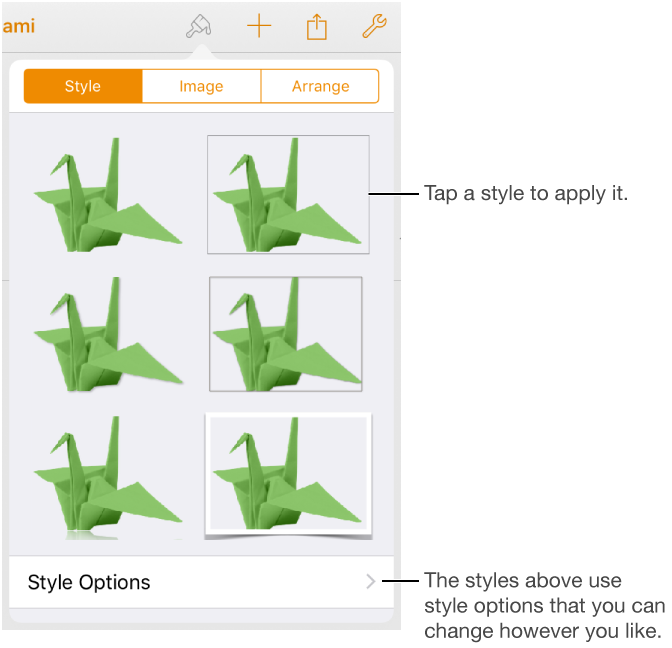
A quick way to change how an object looks is to apply an object style to it. Every template includes object styles—combinations of colors, borders, shadows, and other attributes—that are designed to look good with the template.
After applying a style to an object, you can further change the look of the object by choosing your own options for border, color, and shadow.
Apply a style to an object
Tap an image, shape, text box, line, arrow, or video, then tap .

 .
.