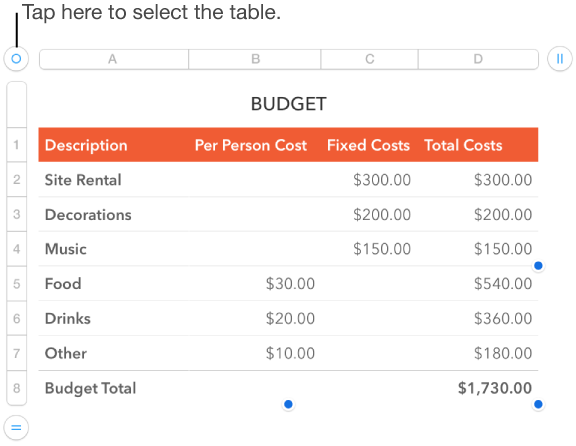

When you add a table, you choose from a number of predesigned styles that match your template. After you add a table, you can customize it however you like.
Do one of the following:
Place the table within text: Tap in the text where you want the table to be fixed. This sets the table to move with text, so if you type before the table, the table moves down. When the table is added, it will have the same justification as the paragraph, so if the paragraph is left or right justified, you can’t center the table on the page.
Place the table so that it can be moved freely: Tap somewhere other than text so that there’s no text insertion point. After the table is added, you can position it where you like—it’s not fixed in the text.
Tap  , then tap
  .
.
Swipe right and left to see more style options.
Tap a table style.
To add content to a cell, double-tap the cell, then type; tap  to close the keyboard.
To change the look of a table or its cells, tap  , then use the formatting controls to make changes.
To move the table, tap it, then drag  in the top-left corner to move it to where you want it.
Note: If the table doesn’t move freely, you can change its placement setting. Select the table, tap , then tap the Arrange tab. Tap Wrap and turn off “Move with Text.”
Tap the table, tap in the top-left corner of the table, then tap Delete.
Tap the table, then tap Copy.
Tap once to deselect the table, tap the edge of the screen near where you want the copy to appear, then tap Paste.
The copy has the same placement setting as the original—it either moves freely or is fixed in text (it is set to “Move with Text”).