
Numbers supports bidirectional text, so you can enter and edit text written from left to right (such as in English or Chinese) and from right to left (such as in Arabic or Hebrew). You can use bidirectional text in paragraphs, shapes, and table cells.
Note: You can use any template to create a bidirectional spreadsheet, but to see templates designed specifically for another language, you must set the primary language of your computer to that language (in System Preferences, click Language & Region, then set the language). When you create a new spreadsheet, you see templates for that language.
In the Format  sidebar, click the Text tab.
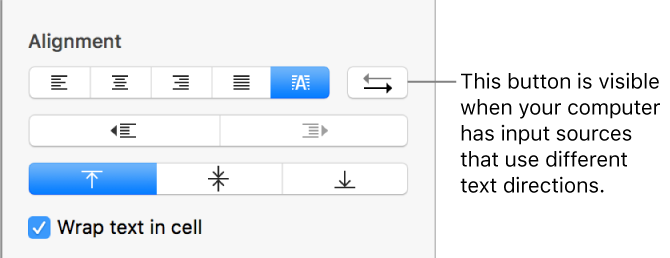
In the Alignment section, click  .
.
The insertion point moves to the other side of the document or object, and the paragraph direction changes.
Enter text, then press Return at the end of the paragraph.
The next paragraph continues in the same direction. To change its direction, click .
If you select multiple paragraphs with different text directions and then click , the paragraphs are formatted to match the first paragraph in the selection.