
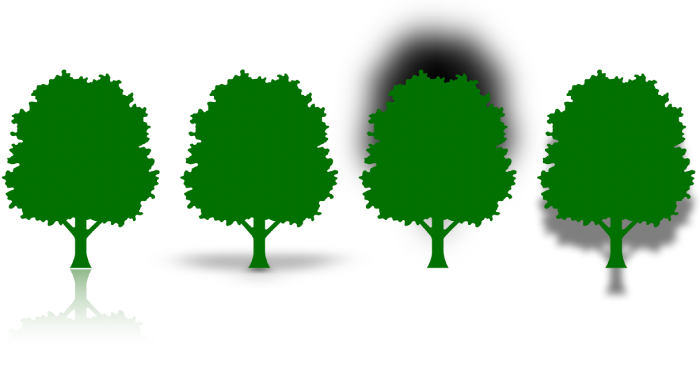
You can add a reflection and a shadow to images, shapes, text boxes, lines, arrows, and videos.
Click to select an object, or select multiple objects.
In the Format  sidebar, click the Style tab at the top of the sidebar.
Select the Reflection checkbox, then drag the slider to make the reflection more or less visible.
Click to select an object, or select multiple objects.
To add a shadow to a chart series, see Change the look of bars, wedges, and other elements.
In the Format sidebar, click the Style tab at the top of the sidebar.
Click the disclosure triangle next to Shadow, click the pop-up menu, then choose a type of shadow:
Drop Shadow: Makes the object look like it’s hovering above the sheet.
Contact Shadow: Makes the object look like it’s standing on the sheet.
Curved Shadow: Makes the object look like its edges are curled.
Adjust any of the following to change the look of the shadow:
Blur: The softness of a shadow’s edge.
Offset: The distance between the shadow and the object or text.
Angle: The angle of the shadow.
Perspective: The angle of the light source in a contact shadow.