
The toolbar at the top of the Numbers window gives you quick access to the controls you need as you work in Numbers. As you discover which controls you use most, you can add, remove, and rearrange toolbar buttons to suit your work style.
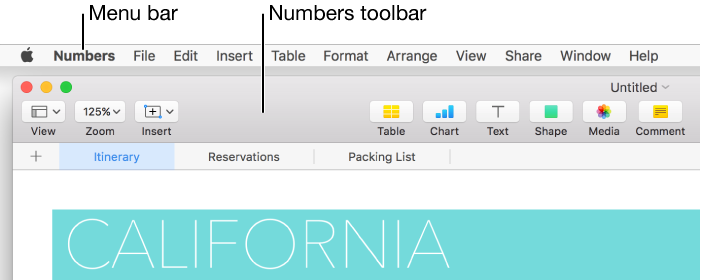
Choose View > Hide Toolbar or View > Show Toolbar (from the View menu at the top of your screen).
Choose View > Customize Toolbar (from the View menu at the top of your screen, not from the View button in the toolbar).
Do any of the following:
Add or remove items from the toolbar: Drag an item to the toolbar to add it. Drag an item away from the toolbar to remove it.
Rearrange items in the toolbar: Drag an item to reorder it.
The Format and Sort & Filter buttons move together; you can’t separate them.
Reset the toolbar: To restore the toolbar to the default setting, drag the set of buttons at the bottom of the window to the toolbar.
Hide button names: Choose Icon Only from the pop-up menu at the bottom of the window. By default, buttons are shown with their names.
Click Done.