
You can export a Numbers spreadsheet to save a copy of it in another format–PDF, Microsoft Excel, CSV, or Numbers '09. Exporting a spreadsheet is useful when you’re sharing it with others who may use different software from you. Any changes made to the exported version don’t affect the original.
Open the spreadsheet, then choose File > Export To > [file format] from the File menu at the top of your screen.
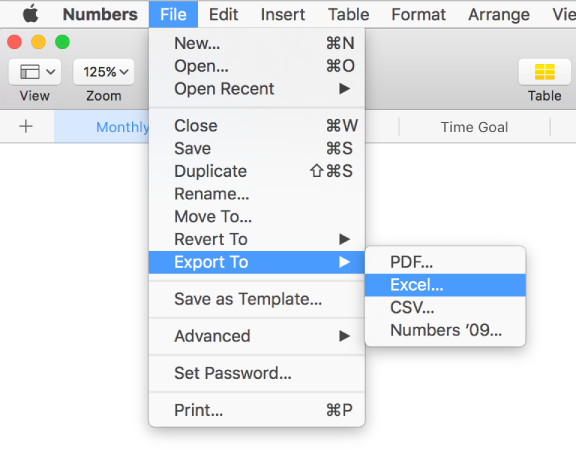
Specify export settings, which differ depending on the file type:
PDF: Choose an image quality. The higher the image quality, the larger the file size of the exported copy. To restrict access to the copy, select the “Require password to open” checkbox, then enter the requested information.
Excel: Choose whether to include a summary worksheet with links to all the tables, and whether to protect the file with a password. If the file needs to be compatible with an older version of Excel (1997-2004), click Advanced Options, then choose .xls from the pop-up menu.
CSV: Creates a separate file for each worksheet, containing your cell contents as values separated by commas. To choose a text encoding format, click Advanced Options, then choose a format from the pop-up menu.
Numbers '09: To restrict access to the copy, select the “Require password to open” checkbox, then enter the requested information.
Click Next, then type a name for the spreadsheet.
The filename extension (.xls or .pdf, for example) is automatically appended to the spreadsheet name.
Enter one or more tags (optional).
To choose where to save the spreadsheet, click the Where pop-up menu, choose a location, then click Export.
To see more locations, click the arrow button next to Save As.
Note: If you set a password, it protects only your exported copy, not the original file. To set a password for the original spreadsheet, see Password-protect a spreadsheet. If the original file already has a password, it applies to the exported file as well.
If you’re sending the spreadsheet to someone else, you can also select a different format when you send it. See Send a copy of a spreadsheet for more information.