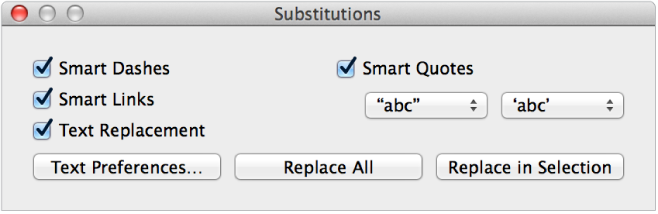

You can automatically convert quotation marks to typographical quotation marks and convert double hyphens (--) to em dashes (—) using the Substitutions window.
You can specify a quotation mark style for single and double quotes for your spreadsheet. To apply formatting to existing text, select the text first.
Choose Edit > Substitutions > Show Substitutions (the Edit menu is at the top of your computer screen).
In the Substitutions window, select the Smart Quotes checkbox.
Choose a quotation mark style from each of the pop-up menus.
Click a button to replace all occurrences of quotation marks in the spreadsheet, or just in the selected text.
When Smart Quotes is turned on, a checkmark appears next to Smart Quotes in the Substitutions menu. You can deselect it to turn it off, but existing quotes won’t change unless you select the text that contains them, then follow the steps above.
Choose Edit > Substitutions > Show Substitutions (the Edit menu is at the top of your computer screen).
In the Substitutions window, select the Smart Dashes checkbox.
Click a button to replace all occurrences of dashes in the spreadsheet, or just in the selected text.
When Smart Dashes is turned on, a checkmark appears next to Smart Dashes in the Substitutions menu. You can deselect it to turn it off, but existing dashes won’t change unless you select the text that contains them, then follow the steps above.