Create or open a spreadsheet

When you create a new spreadsheet, you choose either a blank template to which you can add tables, charts, text, and other objects, or you choose an Apple-designed template that has placeholder elements including text, tables, and images. These templates, which are designed for purposes like personal finance, business, and education, give you a great starting point, and you can modify them however you want.

Create a new spreadsheet

  1. Choose File > New (the File menu is at the top of the computer screen).

  2. Double-click a template for your spreadsheet.

  3. Here are some ways to build your spreadsheet:

    • Select a table cell, then type your own content.

    • Click object buttons in the toolbar to add other tables, text boxes, shapes, and images.

    • Drag tables and objects on the sheet to arrange them.

When you close your spreadsheet for the first time, you are asked to give it a name and location. If you have iCloud set up on your Mac, Numbers automatically saves your spreadsheet to iCloud. To learn more about saving a spreadsheet, go to Save or rename a spreadsheet.

Open an existing spreadsheet

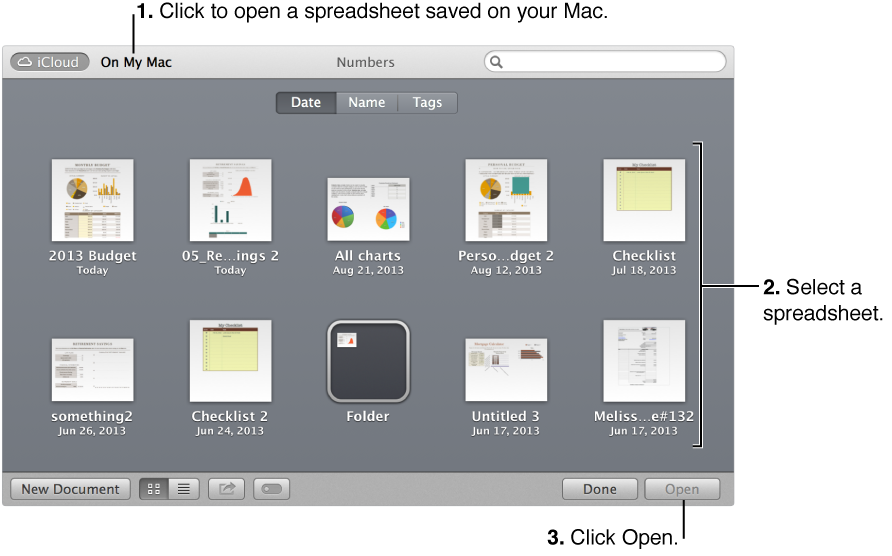
You can open and edit spreadsheets saved on your Mac or in iCloud. You can also open and edit Excel spreadsheets.

If you can’t open an encrypted Microsoft Excel spreadsheet, try changing the type of encryption or the encryption options used, then save it again before opening it in Numbers.

If you don’t see your iCloud spreadsheets, you may need to set up iCloud on your Mac, or turn on “iCloud for Documents & Data” in System Preferences.

See also
Add a table
Add or delete a chart
Use iTunes to transfer spreadsheets