Apply a style to an object
Tap an object, then tap
 .
.Tap Style, then tap a style to apply it.
To further modify how the object looks, tap Style Options.

You can change an object’s appearance by modifying its borders, fill color, shadow, and more. Numbers provides many predesigned object styles—coordinated sets of colors, borders, and shadows—that match a spreadsheet’s template. You can quickly change how an object looks by applying one of these styles, and you also can select from a range of additional options to customize the object’s appearance.
Tap an object, then tap .
Tap Style, then tap a style to apply it.
To further modify how the object looks, tap Style Options.
Tap an object, then tap .
Tap Style Options, then tap Effects.
Drag the Opacity slider (swipe up to see it).
Tap an object, then tap .
Tap Style Options, then tap Border.
If the object has no border, turn on Border.
Tap a border type (swipe up to see the options), drag the Width slider to adjust the border’s thickness, then tap Color to select a color.
You can fill shapes, text boxes, and other objects with a solid color or a gradient (two or more colors that blend into one another). You can choose colors and gradients designed to go with the template, or choose from the full range of colors.
Tap an object, then tap .
Tap Style, then tap Style Options.
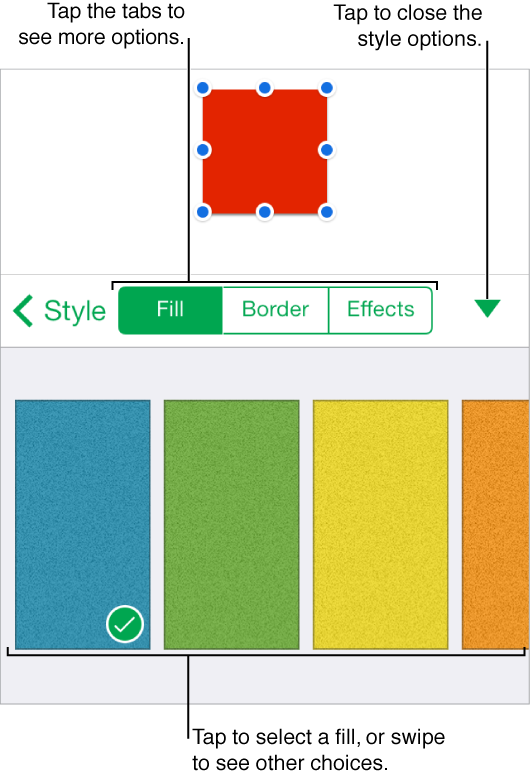
Tap Fill, then choose one of the following:
A color or gradient that goes with the template: Swipe to the color choices to the left of the grayscale options, then tap a color.
The leftmost colors, arranged in columns and rows, are solid. The options to the right, arranged in a row, consist of gradient colors. The rightmost options in the row consist of gradient colors with a textured appearance.
A grayscale fill: Swipe to the grayscale options, then tap one.
A color not predesigned for the template: Swipe to the color grid to the right of the grayscale options, then tap it. Swipe up and down in the grid to see all choices, then tap one.
To preview colors in the object, touch and hold a color, then drag across the grid. A color label appears for each previewed color to help you reproduce an exact match. Release your finger to select a color.
A color from elsewhere on the slide: Swipe to the color grid to the right of the grayscale options, then tap it. Tap  . Touch any color outside of the selected object.
To preview colors in the object, touch and hold a color on the slide, then drag across the sheet to touch other colors. Release your finger to select a color.
To remove a color fill, swipe to view the grayscale options, then tap No Fill.
You can add a shadow or reflection to chart series, shapes, text boxes, and images.
Tap an object, then tap .
Tap Style Options, then tap Effects.
Do any of the following:
Add a shadow: Turn on Shadow, then tap a shadow style.
Add a reflection: Turn on Reflection, then drag the slider to make the reflection more or less visible.