There are two kinds of time-related data you can specify in a cell or formula argument:
When an event occurred—by calendar date and time: For example, “May 1st, 2012, 5:55 PM”
The length of time an event lasted (duration): For example, “7 hours, 12 minutes, and 15 seconds”
Time data can be sorted and used in formulas.
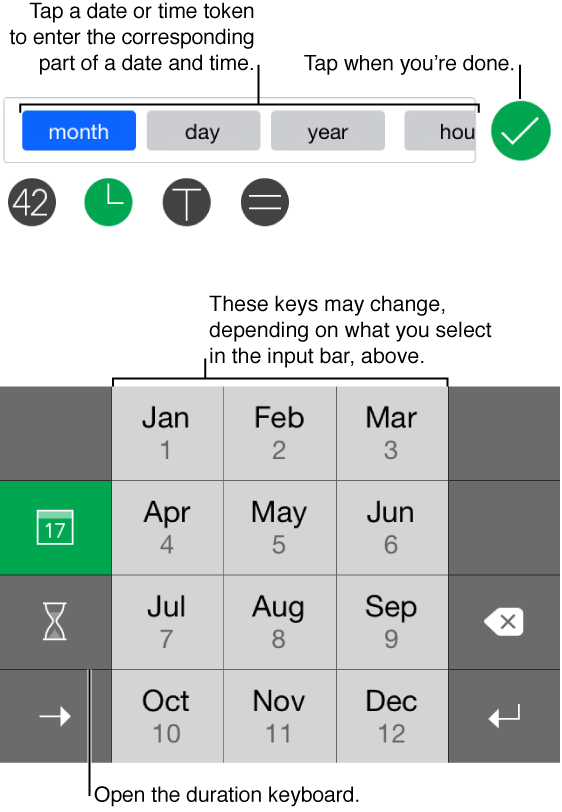
Use the date and time keyboard to specify when an event occurred.
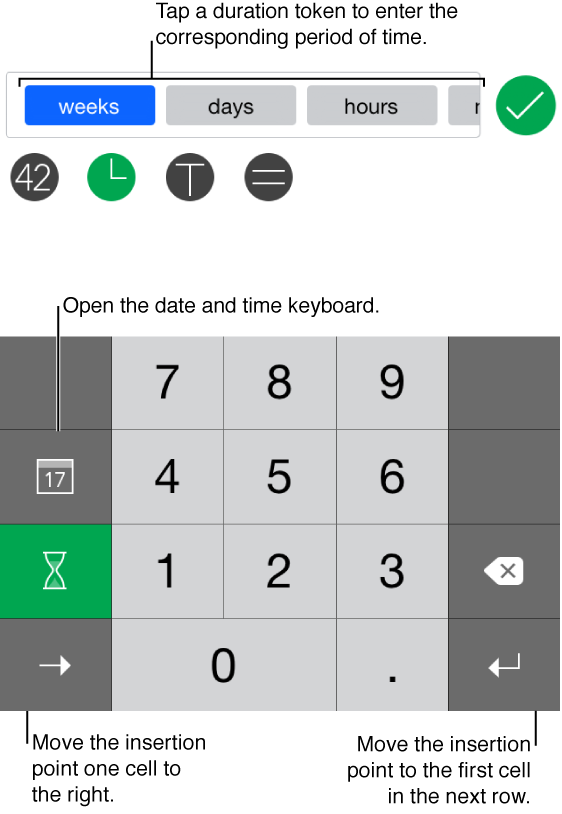
Use the duration keyboard to specify how long an event lasted.
You can change the format for how dates, times, or durations are displayed, and you can preformat groups of cells to accept date and time or duration data. To learn how, see Format cells to display different types of data.
Double-tap a cell, then tap  below the input bar.
Tap  to select the date and time keyboard, or
  to select the duration keyboard. The key is blue when its keyboard is selected.
Tap the tokens in the input bar, then enter a corresponding value for each unit. Scroll to the right in the input bar to see more tokens.
You can ignore any units you don’t want to specify.
If you’re entering a date and time, the keys in the keyboard change to match the kind of data required by the token you selected.
When you’re done, tap  in the input bar.
Double-tap a cell, then tap  below the input bar to select the keyboard for formulas and functions.
You can create your own formula that includes date and time or durations.
You can also insert a function, then specify time data as values for variables in that function. To add a function, tap  , then tap to choose a function. Tap the function token that you want to enter a time value for, such as “start-date.”
Tap in the keyboard.
Tap to select the date and time keyboard, or to select the duration keyboard. The key is blue when its keyboard is selected.
Tap the tokens in the input bar, then enter a corresponding value for each unit. Scroll to the right in the input bar to see more tokens.
You can ignore any units you don’t want to specify.
If you’re entering a date and time, the keys in the keyboard change to match the kind of data required by the token you selected.
Tap Done, then tap in the input bar.