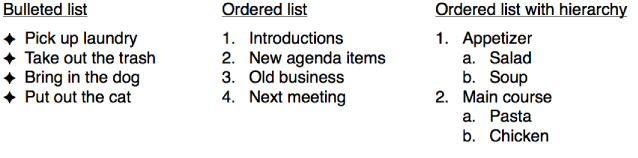

You can create one of several types of lists.
Tap  , tap
, tap  , then tap Text.
Double-tap the placeholder text, then enter the first item in the list.
Tap  , tap List, then tap a list style.
If you don’t see List, make sure you selected the text and not the text box.
Tap Return, then continue entering list items, tapping Return after each entry.
Each new line is preceded by the bullet or number format you selected. You can change the list style at any time.
To change the indentation level (hierarchy) of the item, select the list item, tap , then tap the left or right indent button.
To end the list, tap Return twice.
To change the list style, select all of the list items, tap , tap List, then tap a new list style.
To adjust list spacing, select the list items, tap , tap Layout, then use the Line Spacing arrows to increase or decrease spacing.
You can drag items in a list to a different level in the hierarchy or to a different indentation level.
Double-tap the text first, then touch and hold the bullet or symbol at the beginning of the line.
Drag the item up or down in the list, or drag it to the left or right, until you see a blue triangle where you want the item.