Change the look of a chart

You can change the look of a chart by applying a different style to it, changing its font, adding a border, and more.

Apply a different style to a chart

The thumbnail images at the top of the Chart pane represent predesigned chart styles that are specifically made to look good with the template you’re using. You can apply a different style to a chart at any time.

  1. Tap the chart, then tap Format button.

  2. Tap Chart, then tap one of the chart styles.

Change the look of chart text

  1. Tap the chart, tap Format button, then tap Chart.

  2. Tap Chart Options, then do any of the following:

    • Change the font: Tap Chart Font, then tap a font.

    • Change the font style: Tap Chart Font, tap Info button next to the font, then tap a style.

    • Make the font smaller or larger: Tap Smaller or Larger.

      All text in the chart increases or decreases proportionally (by the same percentage).

Add a border around a chart

You can add a border to any 2D bar, column, area, or scatter chart.

  1. Tap the chart, tap Format button, then tap Chart.

  2. Tap Chart Options, then turn on Border.

Change the depth of a 3D chart and the shape of series elements

You can change the chart depth and the shape of columns or bars for a 3D chart.

  1. Tap the chart, tap Format button, then tap Chart.

  2. Tap Chart Options, then do any of the following:

    • Adjust the depth: Drag the Depth slider to the right to make the chart appear deeper, or drag it to the left to make it appear less deep.

    • Change the shape of columns or bars: Tap Column Shape or Bar Shape, then choose either Rectangle or Cylinder.

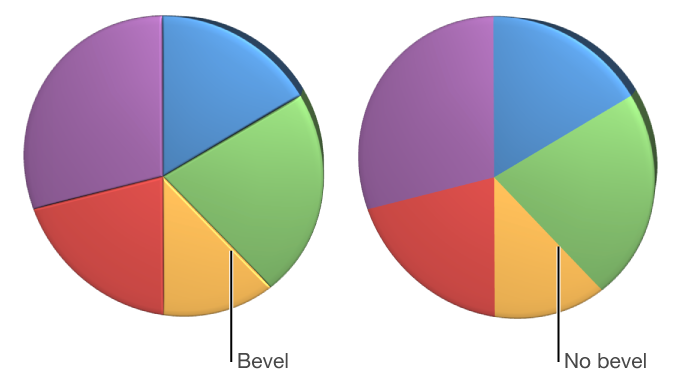
Bevel the edges between series or wedges in 3D stacked or pie charts

You can increase the distinction between series in 3D stacked bar or column charts and 3D pie charts by beveling the edges where the series meet.

A pie chart with beveled edges
  1. Tap the chart, tap Format button, then tap Chart.

  2. Tap Chart Options, then select the Show Bevels checkbox.

If you can’t edit a chart, you may need to unlock it.

See also
Change a chart from one type to another